
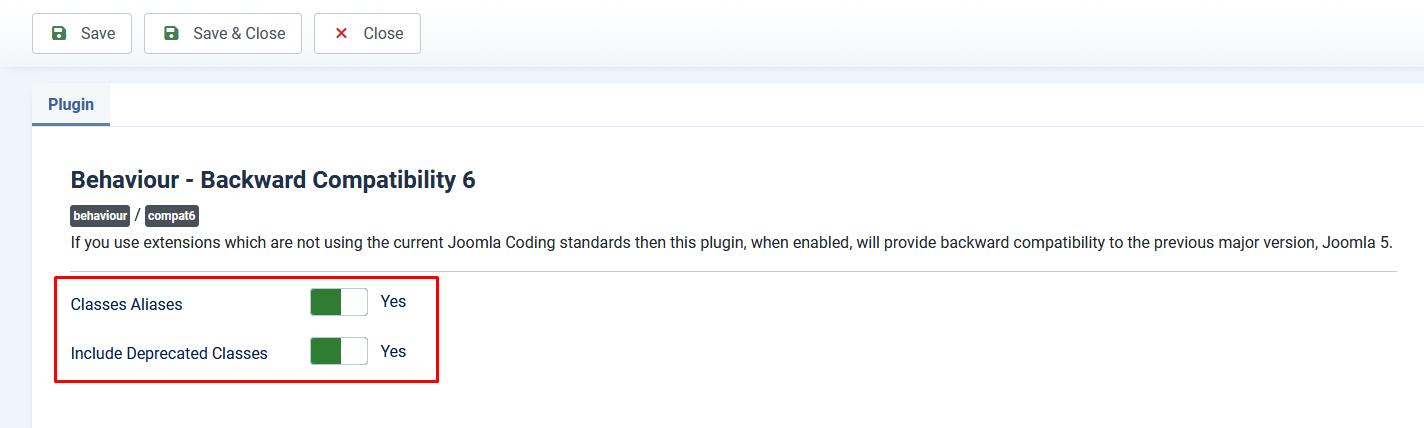
Note: If you are installing this extension on a Joomla 6 site, make sure the “Behavior - Backward Compatibility 6” plugin is published and that both plugin options are set to “Yes.”
Step 1: Install EB Display Amazon Products plugin
- Login to Joomla administrator panel and Go to Extensions -> Manage -> Install

- On the Installation Page, Select the "Upload Package File" Tab, Then Upload Downloaded Zip

Step 2: Open Plugins Page
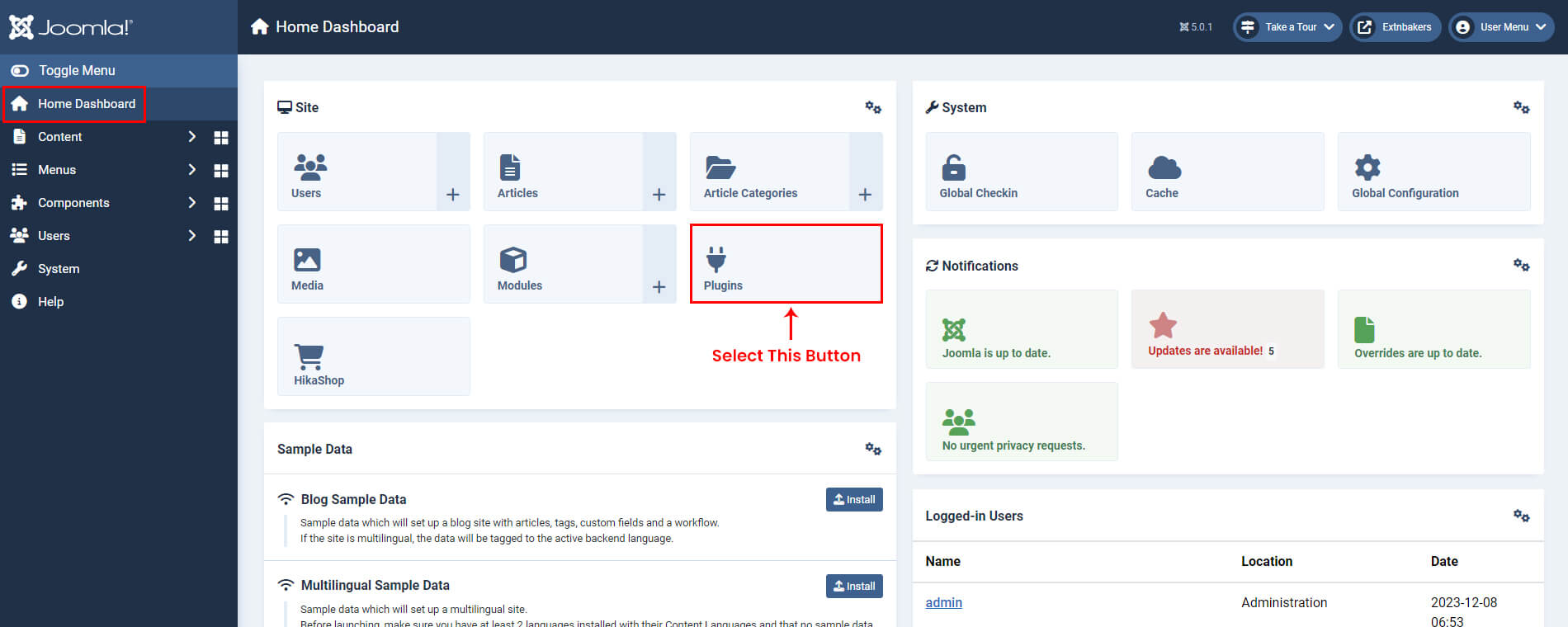
- Go to Extensions -> Plugins
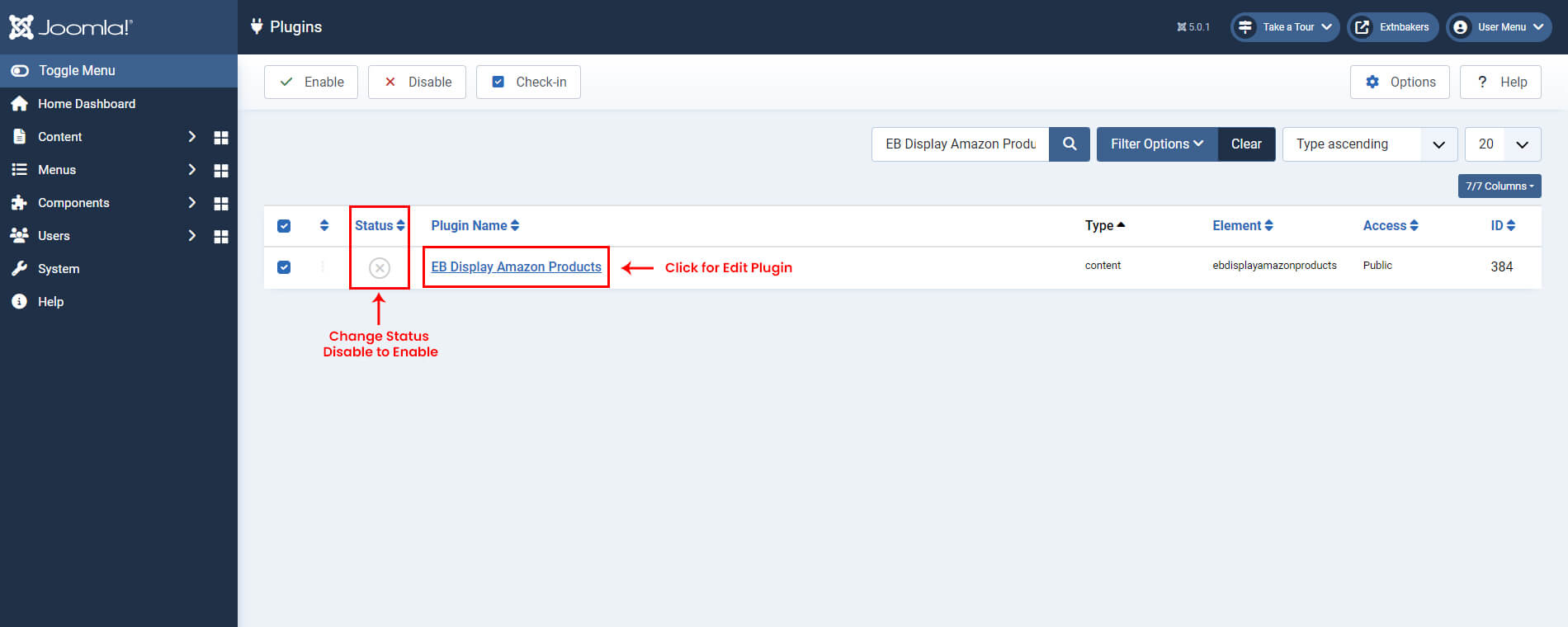
- Search for "EB Display Amazon Products" in the Search box and Click on Close icon for Disable to Enable Plugin, Then Click on "EB Display Amazon Products" plugin to start editing.
Step 3: Configure the plugin
How to get Credential Keys
- Get Credential ID, Secret, Version at: https://affiliate-program.amazon.com/creatorsapi/docs/en-us/onboarding/register-for-creators-api.
Where to Find Your PartnerTag
- Go to the Amazon Associates Central dashboard.
- Look at the top right corner of the page.
- You will see your Tracking ID (e.g., yourname-20, mystore-21, or a onelink format).
Plugin Settings
- Credential ID - Configure Amazon API Access KEY (for example, amzn1.application-oa2-client.AKIAIOSFODNN7EXAMPLE).
- Secret KEY - Configure Amazon API Secret KEY for example, amzn1.oa2-cs.v1.wJalrXUtnFEMI/K7MDENG/bPxRfiCYEXAMPLEKEY).
- Version - Configure Amazon API Version (for example 3.2).
- Partner Tag - Configure Amazon API PartnerTag (for example, amazonlinks-21).
- Select Language - Configure the locale of the store. Select value from DE, UK, CA, CN, ES, FR, IT, JP, US.
- Product Button Label - Configure Amazon product Button Label
- Price Note - Add Note for Price, How to calculate price on product.
- Border Color - Configure Border Color for Display product view
- Background Color - Configure Background Color for Display product view
- Cache Options
- Enable Cache - Enable Cache option work based on Amazon API call run. Basically configure this option, Control on how many times run Amazon API. Configure Disable Option, Every page load Amazon API call run.
- Cache Time - Please add Numeric Value. Field value consider as Hour Time. This selected Cache Time, Run Amazon API.
- Clear Cache - Click on This Clear Cache Button and flush(delete) all store API code files.
- Save Plugin


- Use this shortcode to place the desired product anywhere in the article OR module.
- [amazon id="ASIN OR ISBN" style="SMALL OR FULL" width="200px" imagealign="left"]

Purchase Key
- Purchase Key - Enter the purchase key to enable auto updates

- And you're done. Save the edit page and have a look at the front end!
NOTE: Make sure, allow_url_fopen is ON. You can check it under System -> System Information -> PHP Information.