
Step 1: Install EB Instagram Stream module
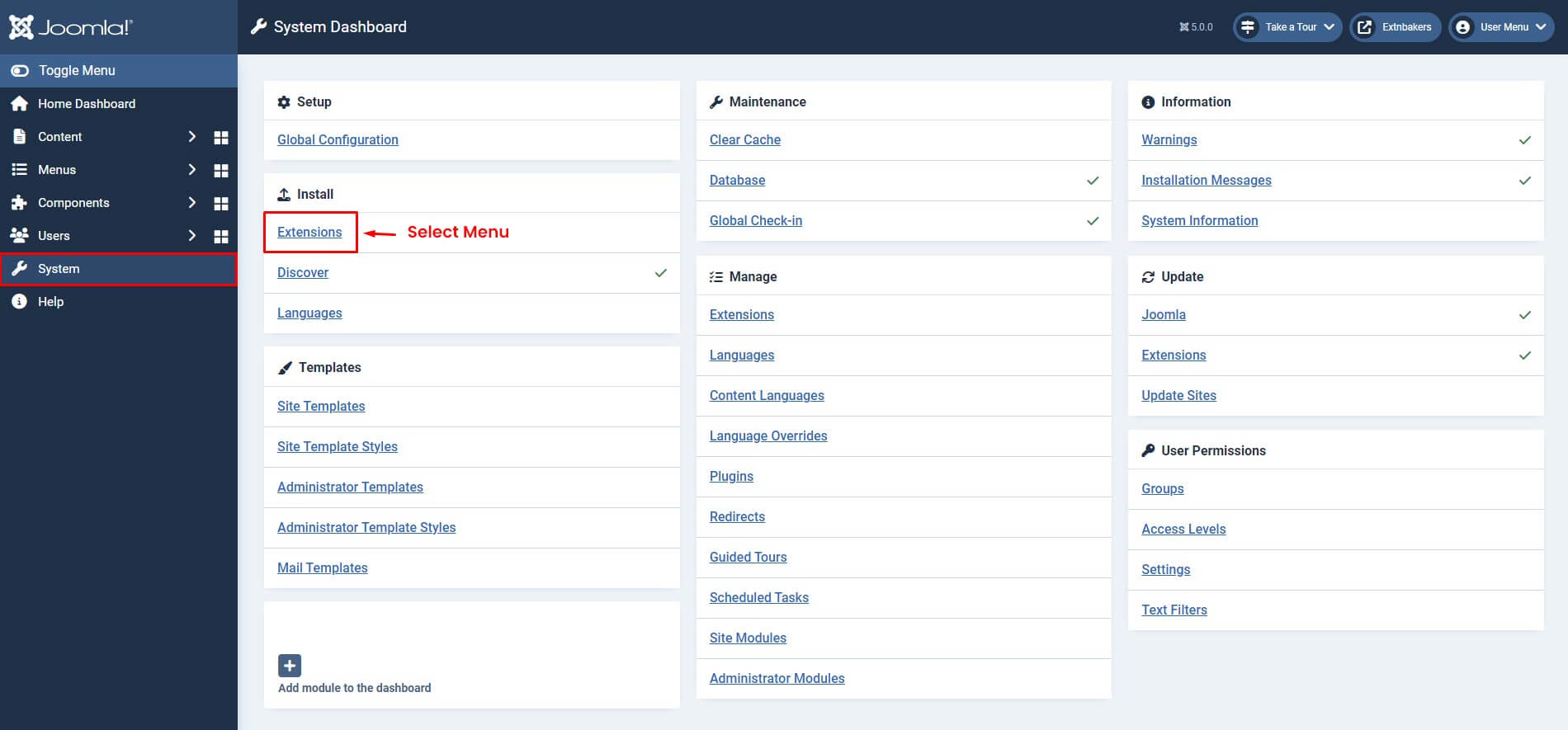
- Login to Joomla administrator panel and Go to Extensions -> Manage -> Install
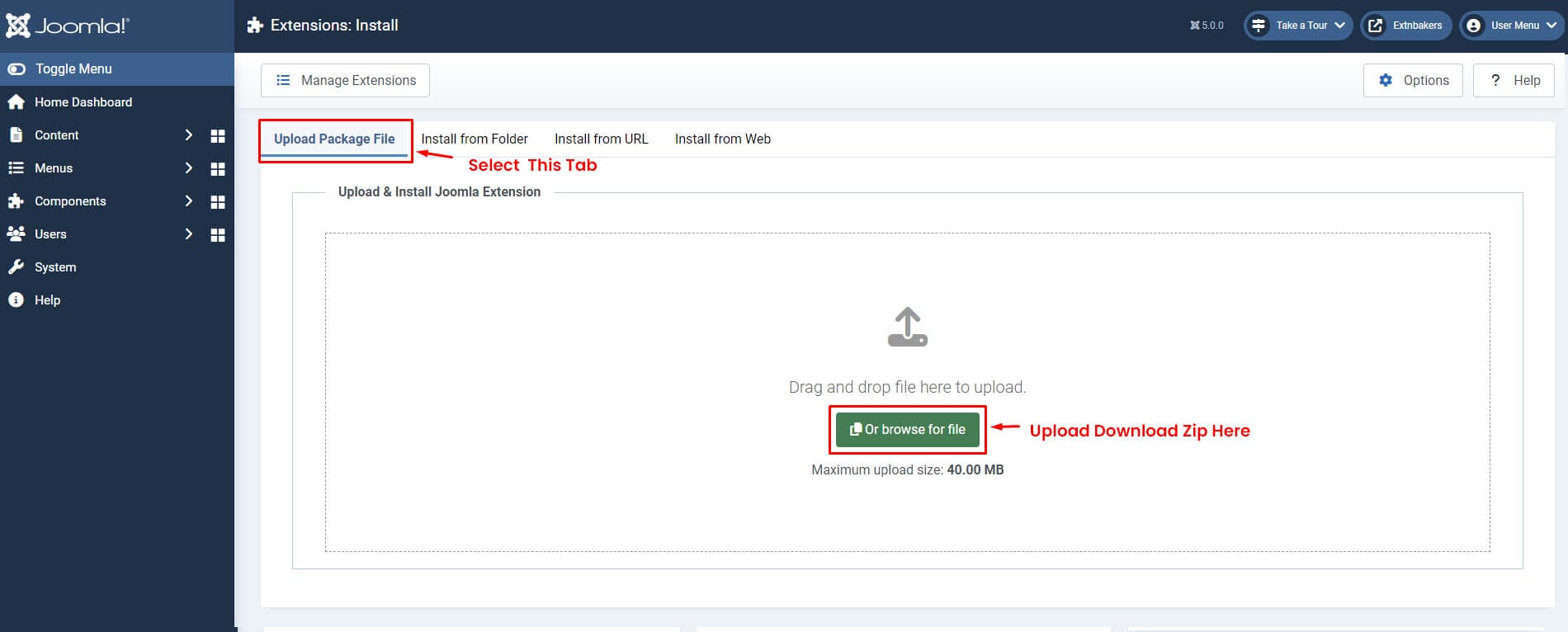
- On the Installation Page, Select the "Upload Package File" Tab, Then Upload Downloaded Zip
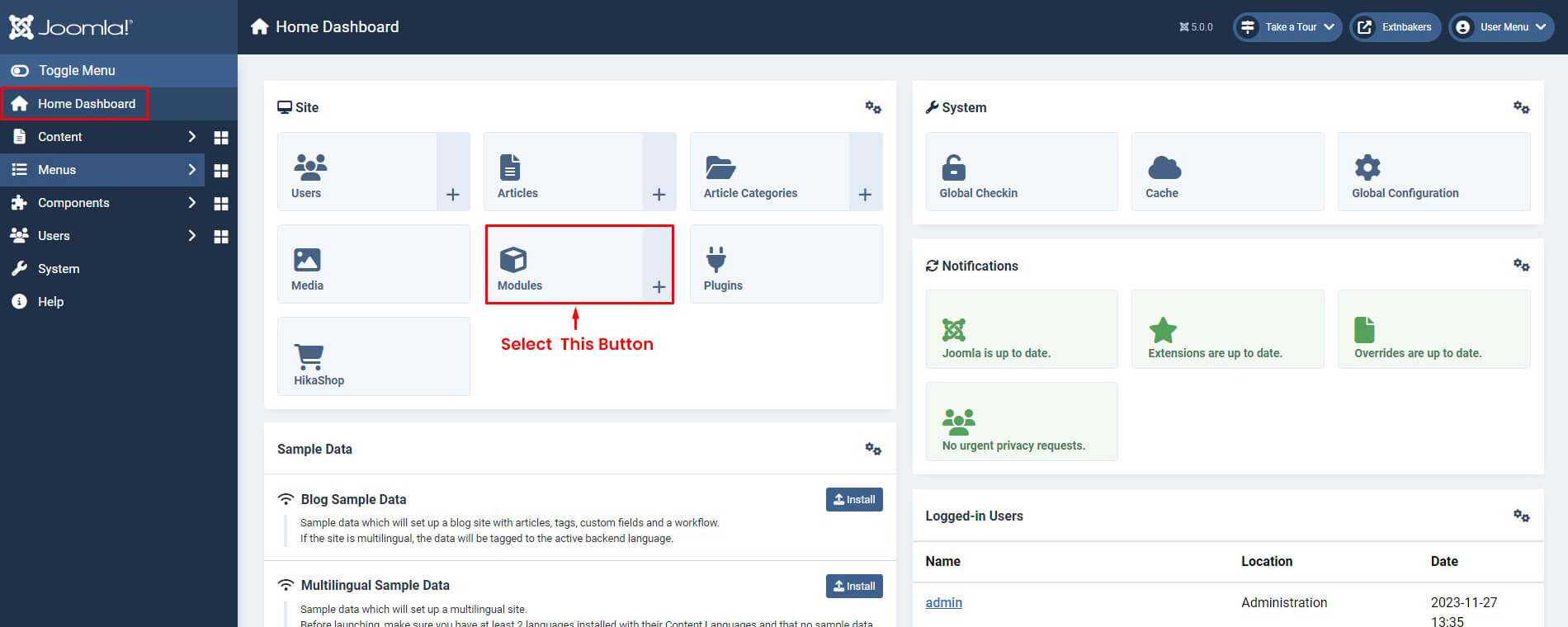
Step 2: Go to EB Instagram Stream Module
- Go to Extensions -> Modules
Step 3: Configure the Module
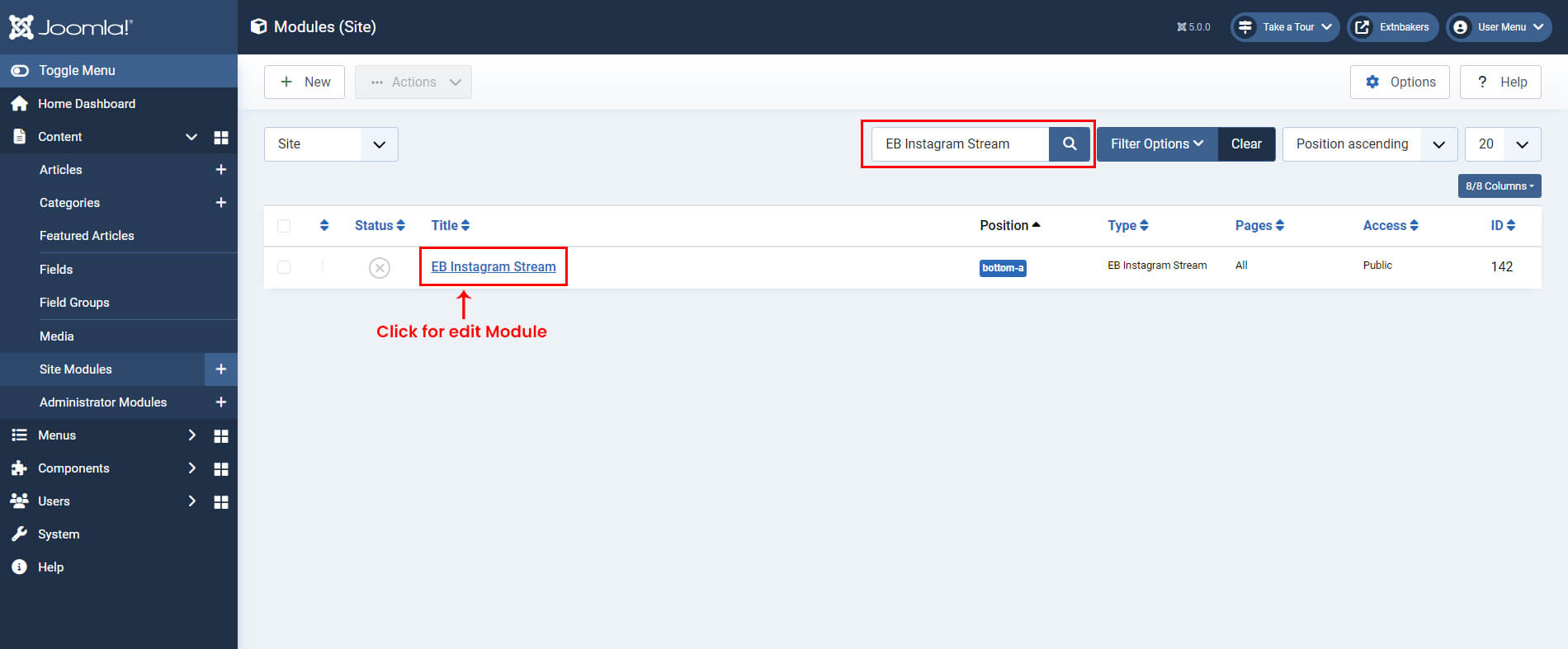
- Search for "EB Instagram Stream" in the Search box and click on "EB Instagram Stream" module to start editing
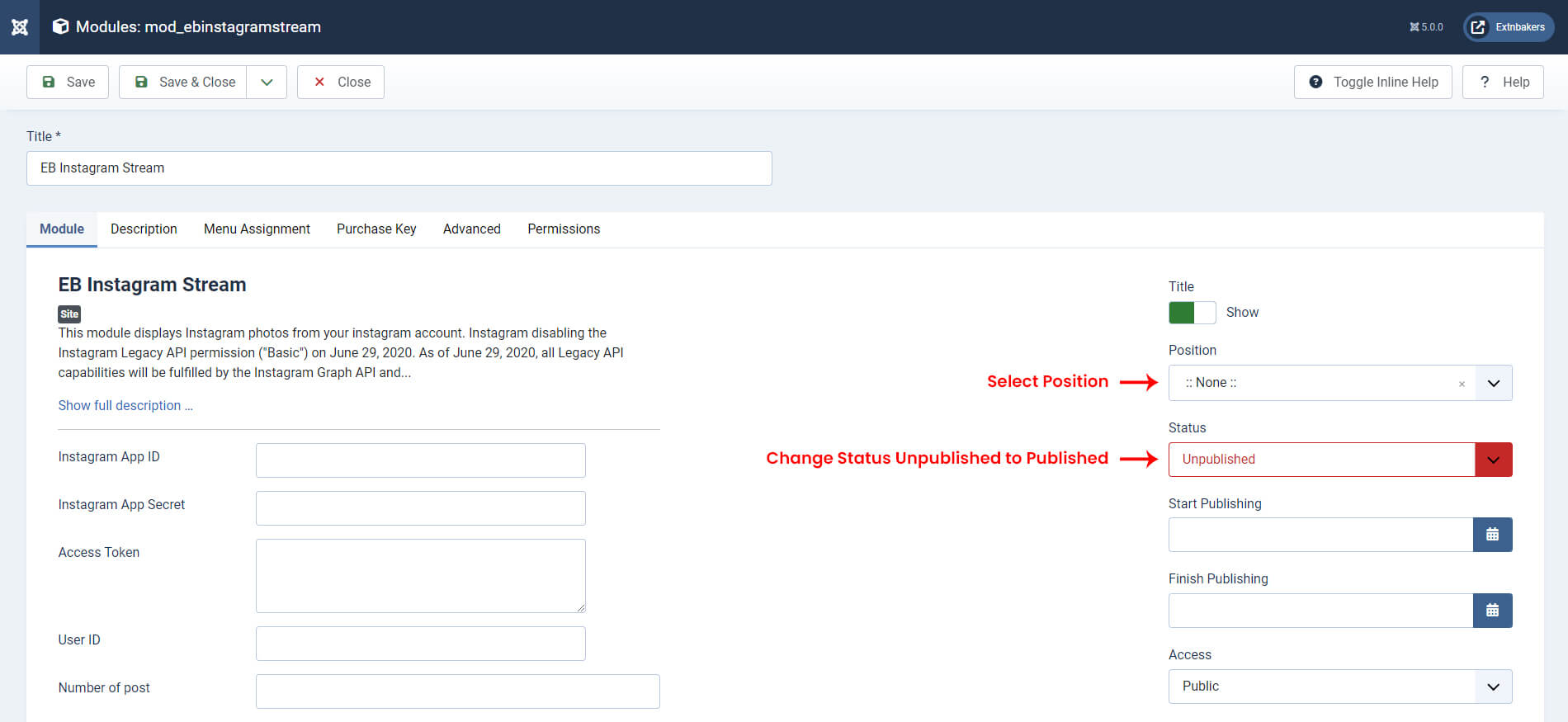
- On the Module Edit Page, Select Position for Instagram Stream module for display and Change status from Unpublished to Published
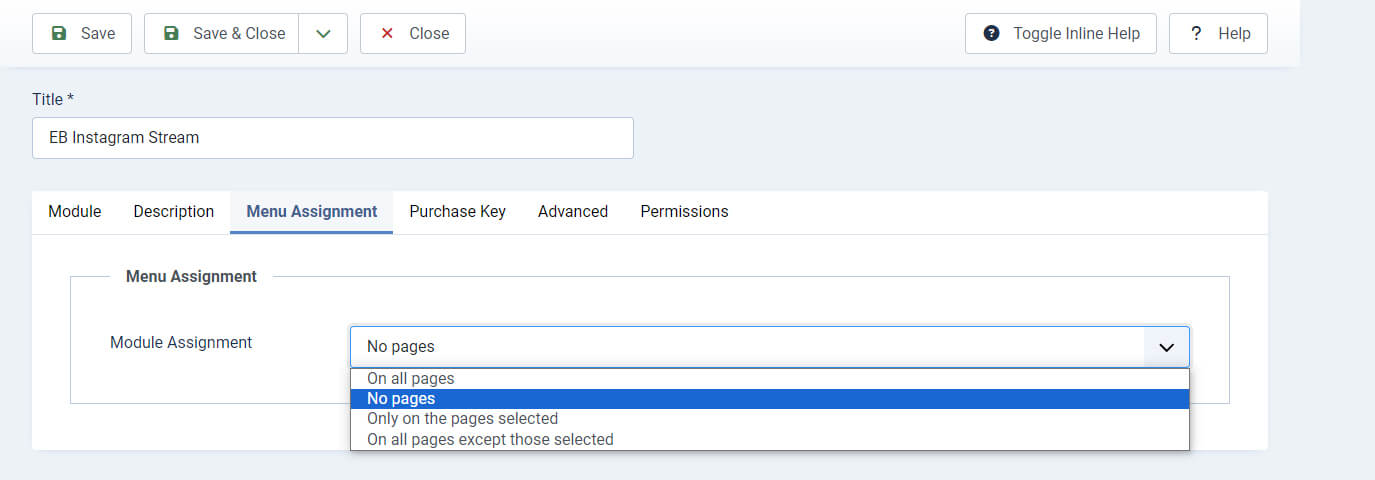
Menu Assignment
- Configure Page where you want to display EB Instagram Stream Module
Instagram Stream Settings
- For Instagram Stream You will require Access Token. Get Access Token follow the process.
Step 1: Create your Facebook app
If you don’t already have a Facebook app for your application, create one now:
- Go to developers.facebook.com (If you not login then, Login with your Fecabook user & password.), click Create App
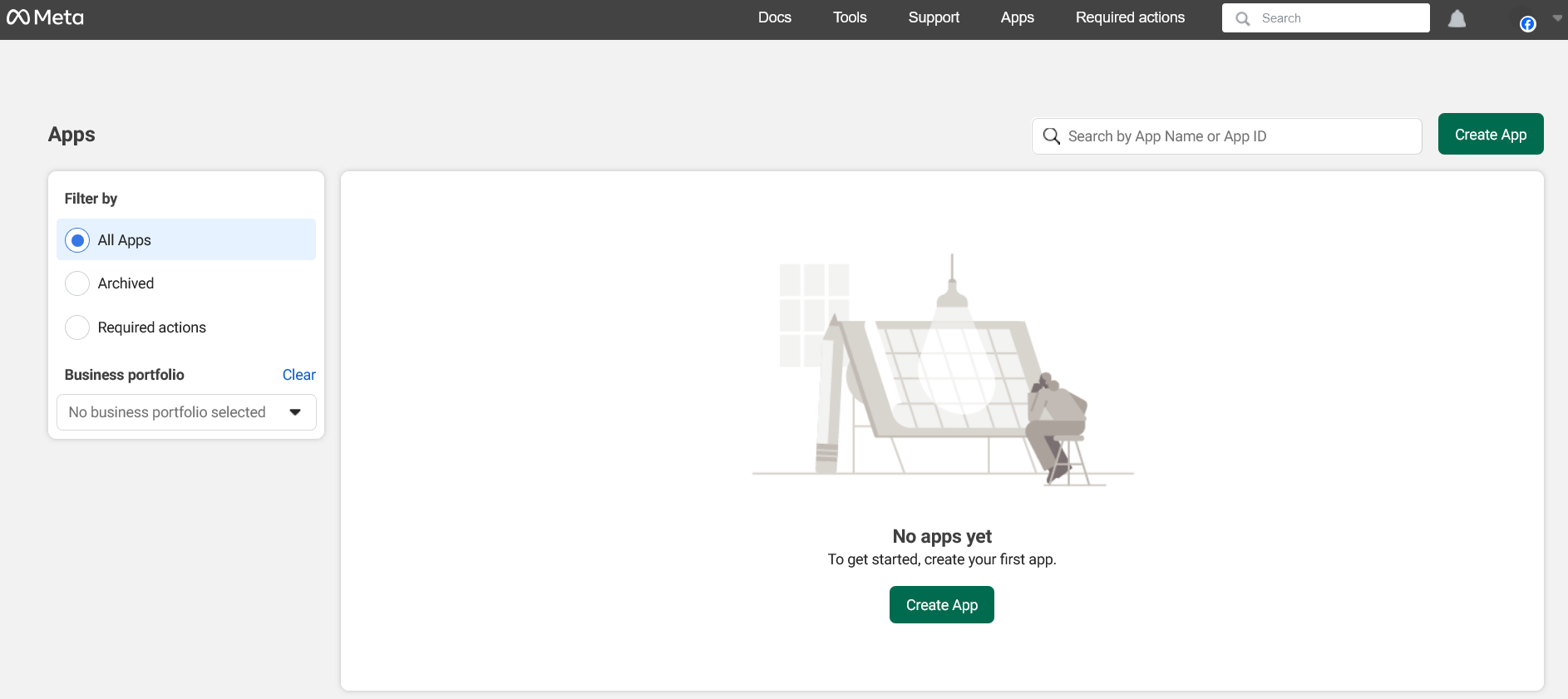
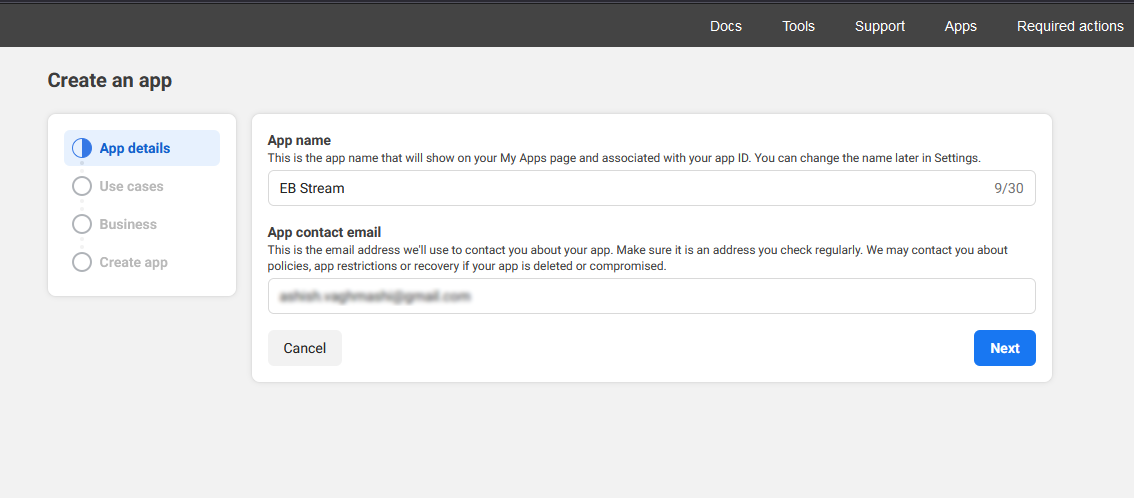
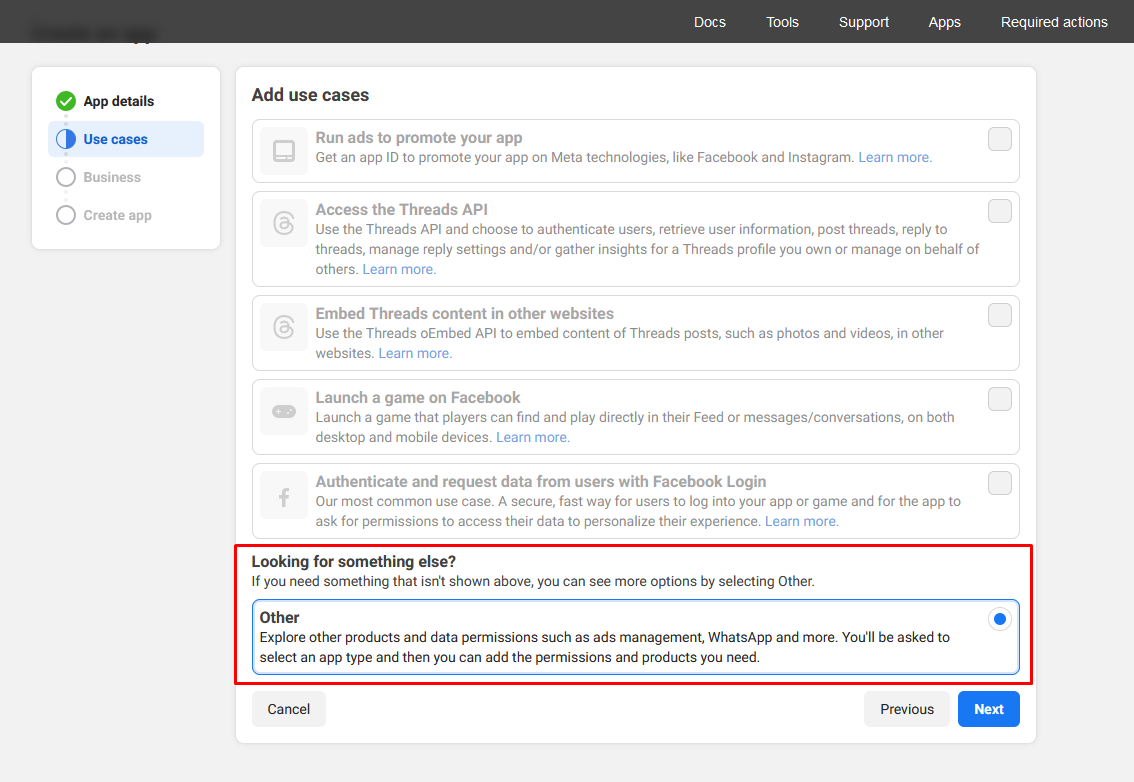
- Now Add Cases and Select Other And Click Next
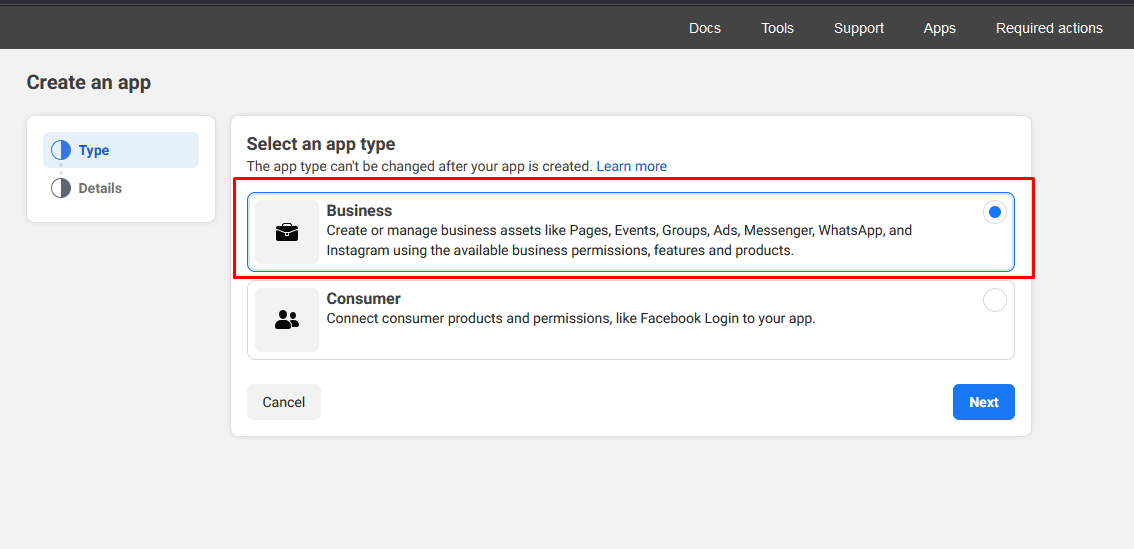
- Now Select App Type to Business and Click Next
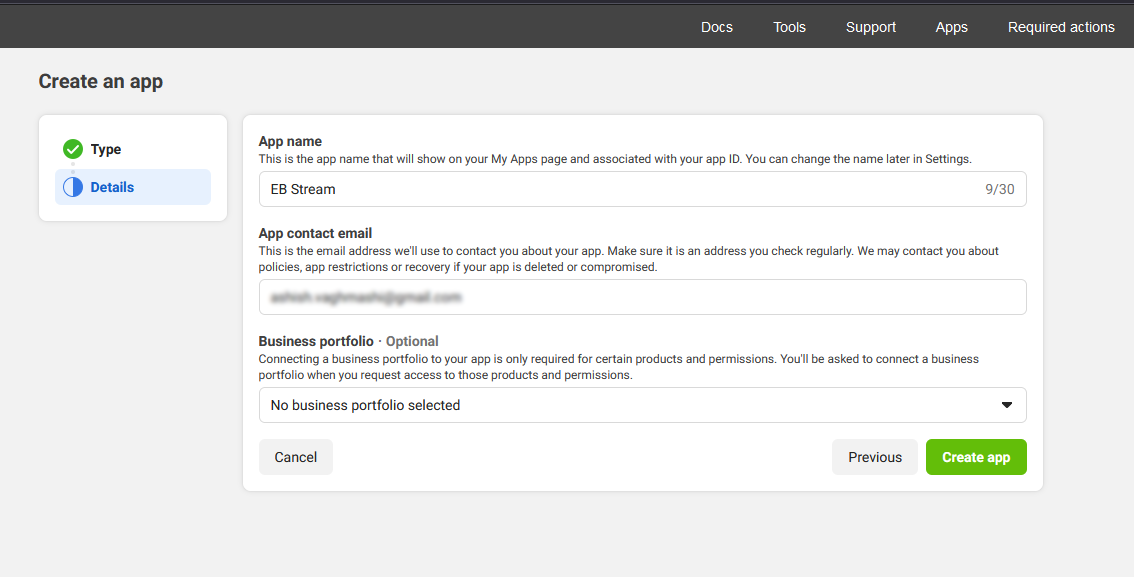
- Add App name as you want and email If you have business portfolio(Optional) And Click Create app
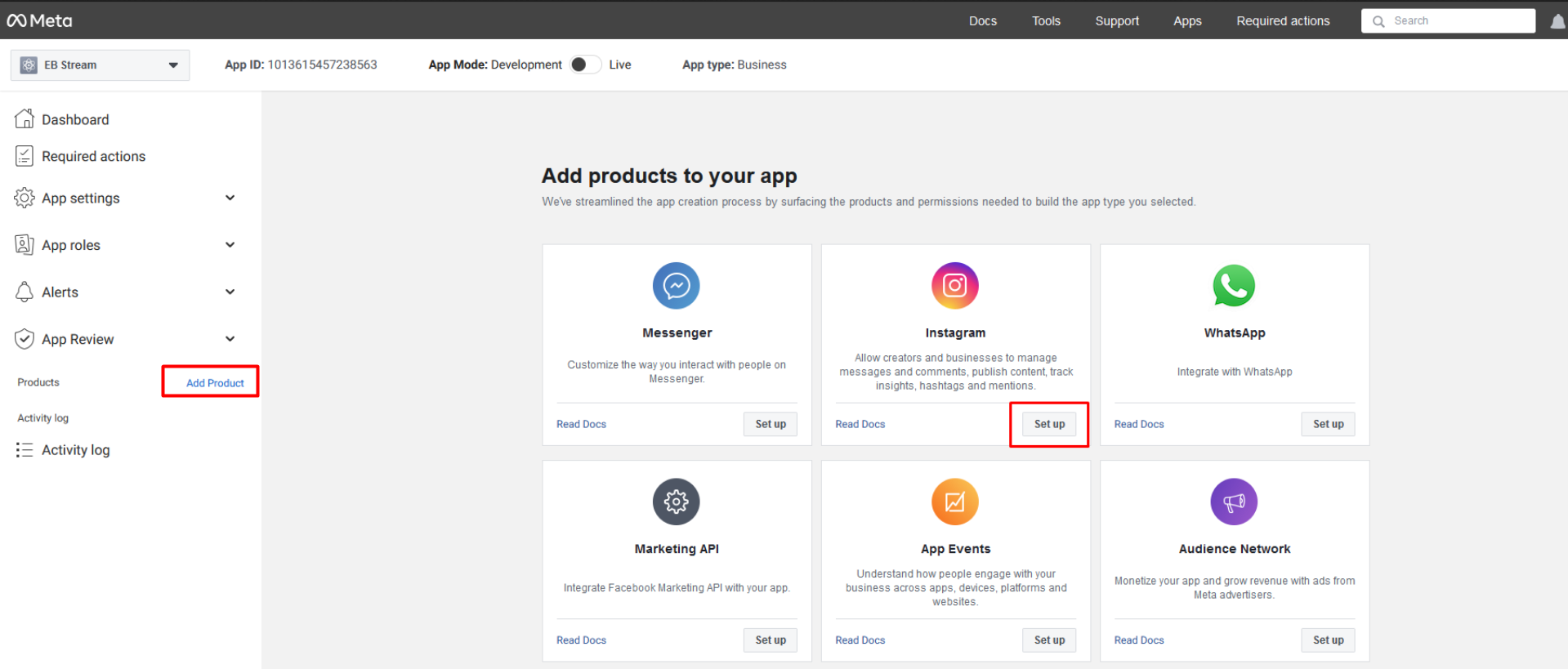
- Once you have created the app and Now add Instagram product to your app
Step 2: API setup with instagram business login
- Now Copy Instagram App ID , App Secret .
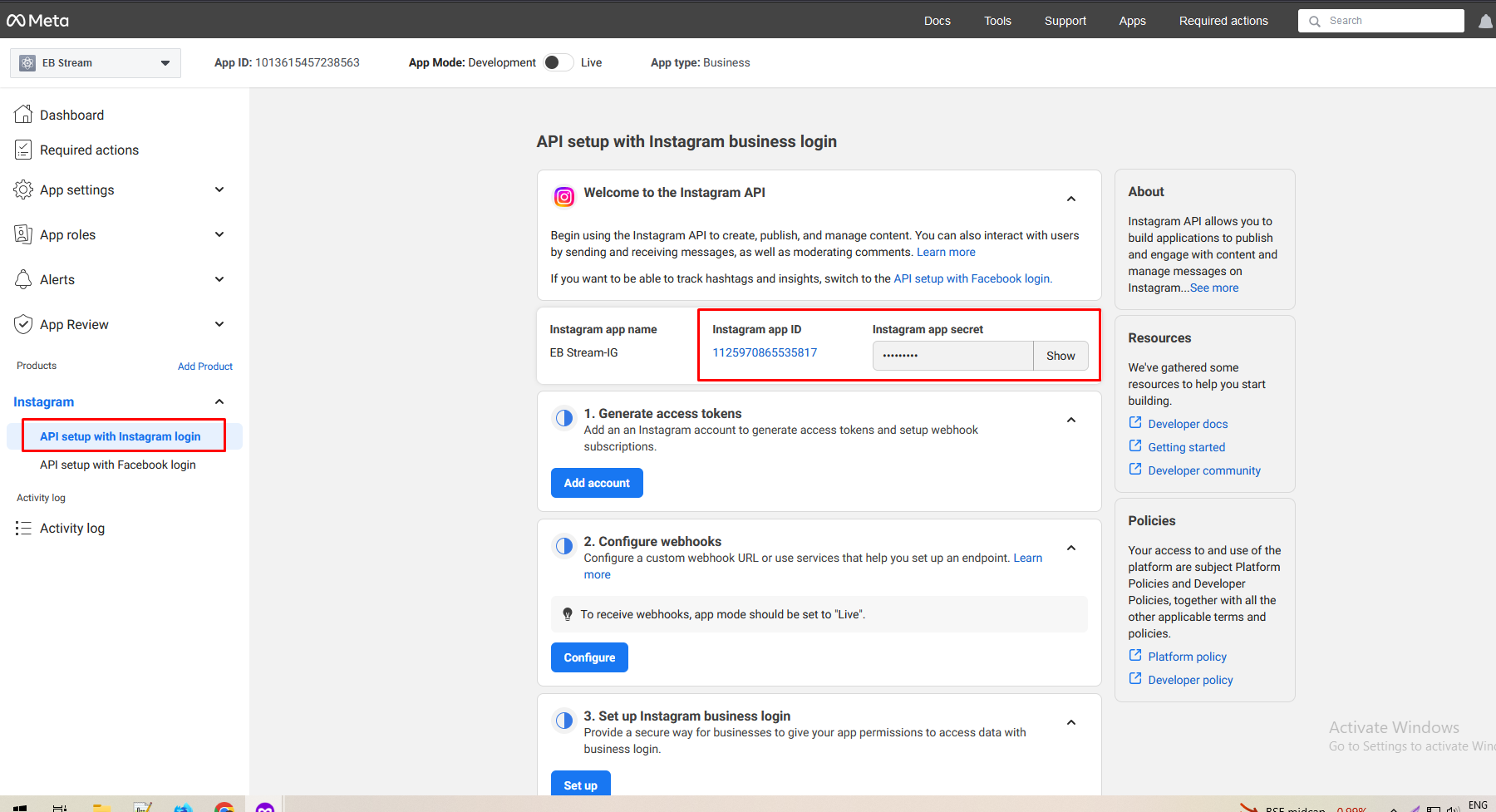
- Add EB Instagram Stream Module Fields Instagram App ID and Instagram App Secret and Save the settings.

- Now add instagram account
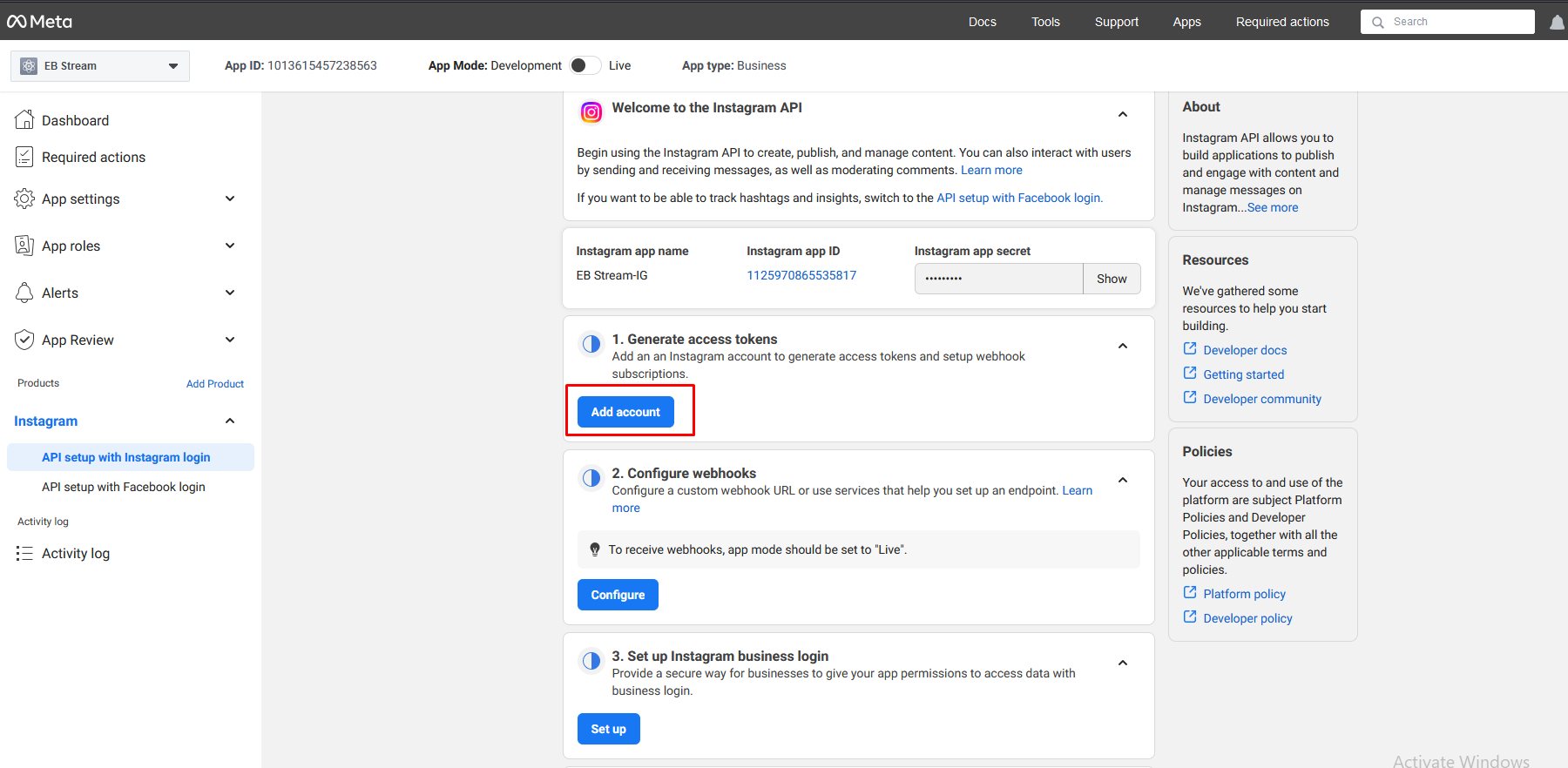
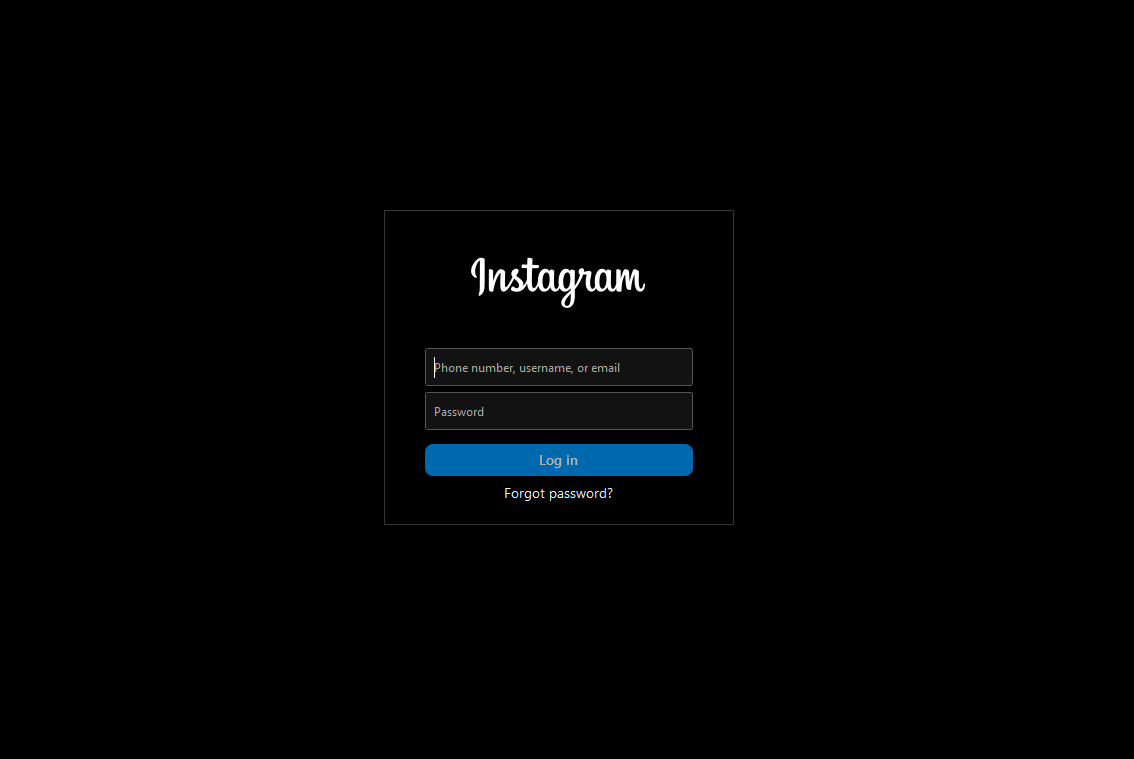
- Now login instagram account
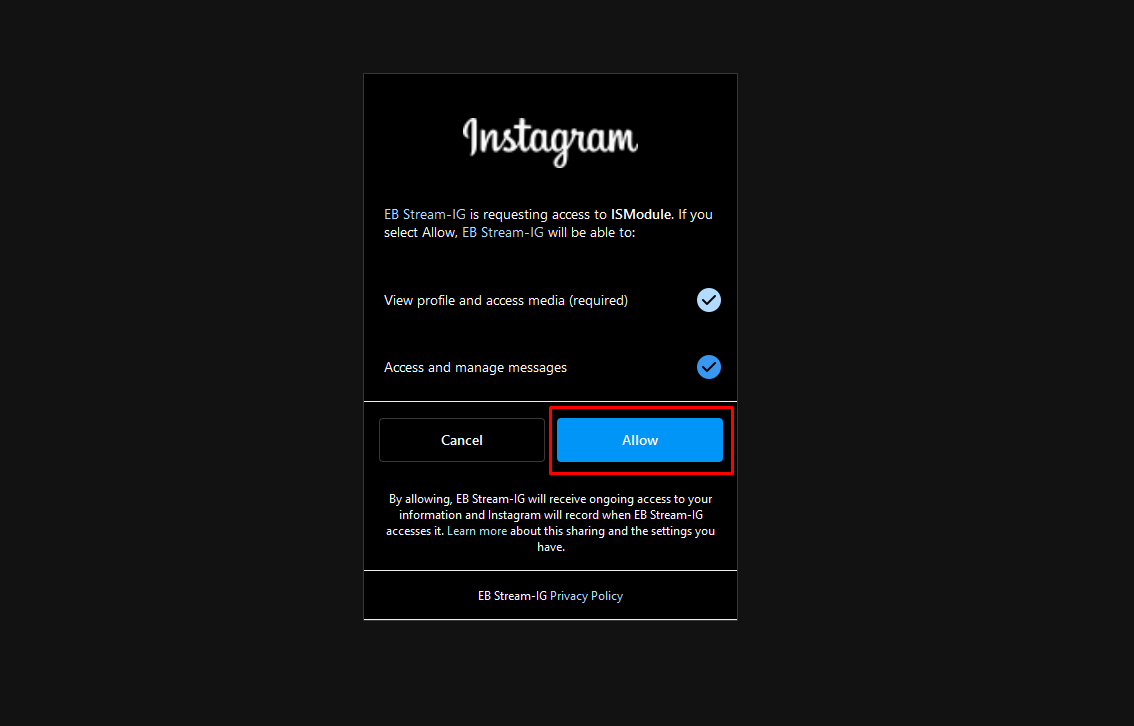
- Then Click Allow
- After the Instagram Tester role has been added to your Instagram account, you need to log in to your Instagram account and go to Settings → Website permissions → Websites and apps. Under the Instagram Tester tab, you’ll find an invitation that must be accepted.
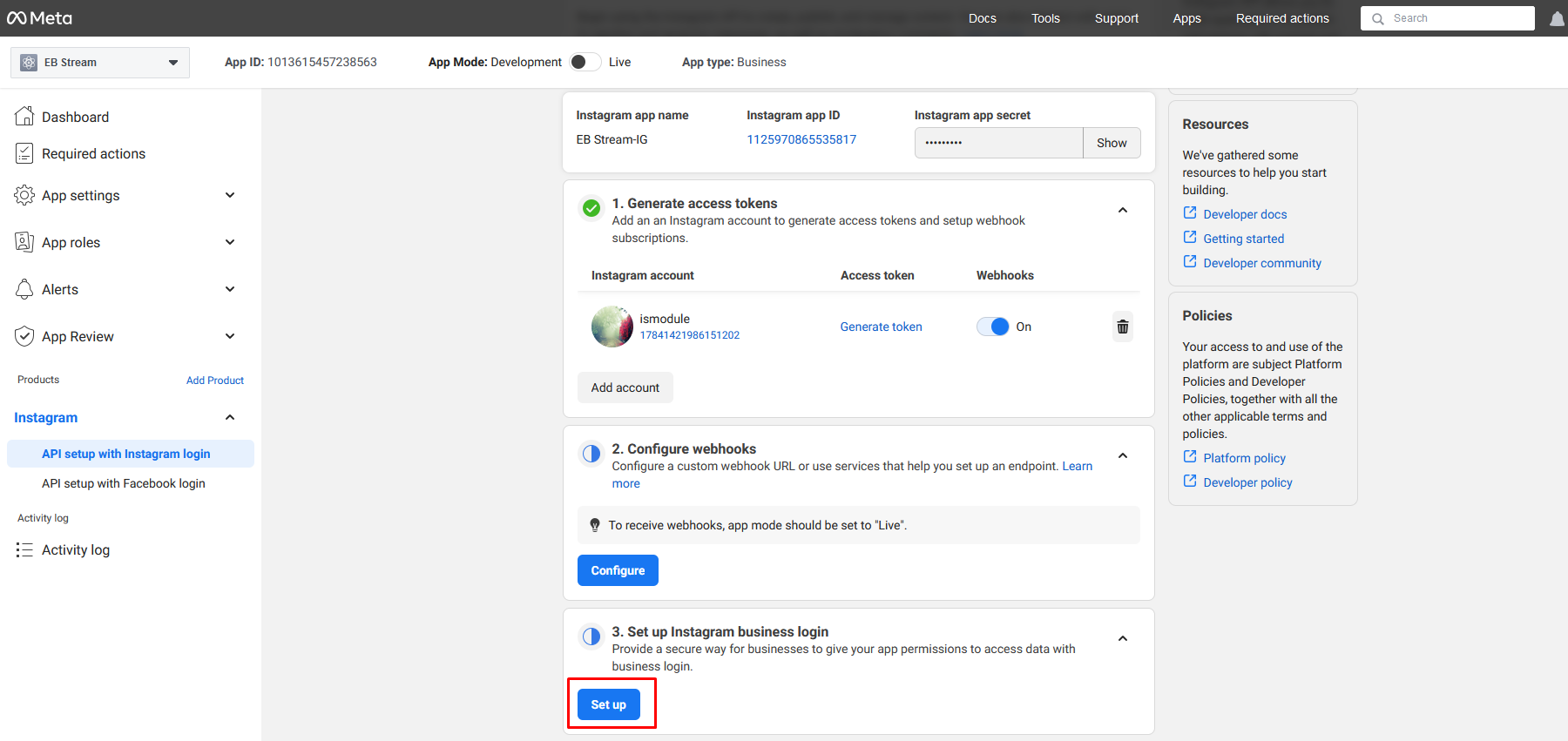
- Last Set up Instagram business login, Click on Set up
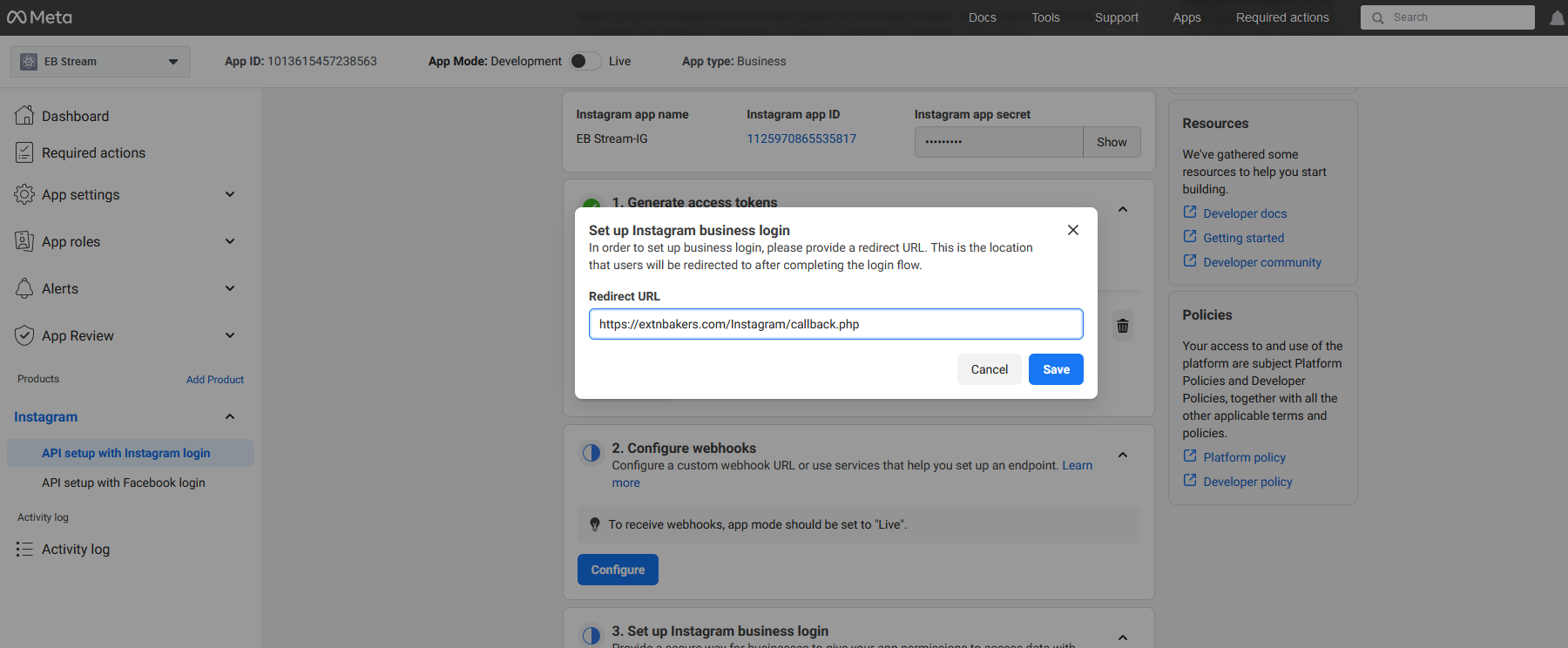
- Add Redirect URL https://extnbakers.com/Instagram/callback.php Save it And Complited the app setup
Step 3: EB Instagram Stream Module Set up
- Click on Description Tab And Click Button Click here to get your Access Token

- Then Open Instaragram oauth login Step
- Login with your Instagram Account and Follow Process until ends
- If Everything went well, You'll be brought back to this page again and, your Instagram Access Token and User ID will be ready for you. Do not share this token with Anyone else.
- Configure Number of posts, You will see posts in front-ends

Display Settings
- Stream Style - Select In-built Instagram Stream Style (Can refer demo to see how each style looks)
- Thumb Style - Select Thumb Style Square OR Circle
- Column(s) in Desktop - Configure number for Column(s) in Desktop Display
- Column(s) in Tablet - Configure number for Column(s) in Tablet Display
- Column(s) in Mobile - Configure number for Column(s) in Mobile Display
- Show Text - This field configure, Display post Text(Caption) in selected stream

Cache Settings
- Enable Cache - Enable Cache option work based on Instagram API call run. Basically configure this option, Control on how many times run Instagram API. Configure Disable Option, Every page load Instagram API call run.
- Cache Time - Configure select option, This selected Cache Time, Run Instagram API.

Purchase Key
- Purchase Key - Enter the purchase key to enable auto updates

- And you're done. Save the module and have a look at the front end!
NOTE:
This is for the Instagram app, not the Facebook application.
Make sure, allow_url_fopen is ON. You can check it under System -> System Information -> PHP Information.