
Step 1: Install EB Video Gallery module
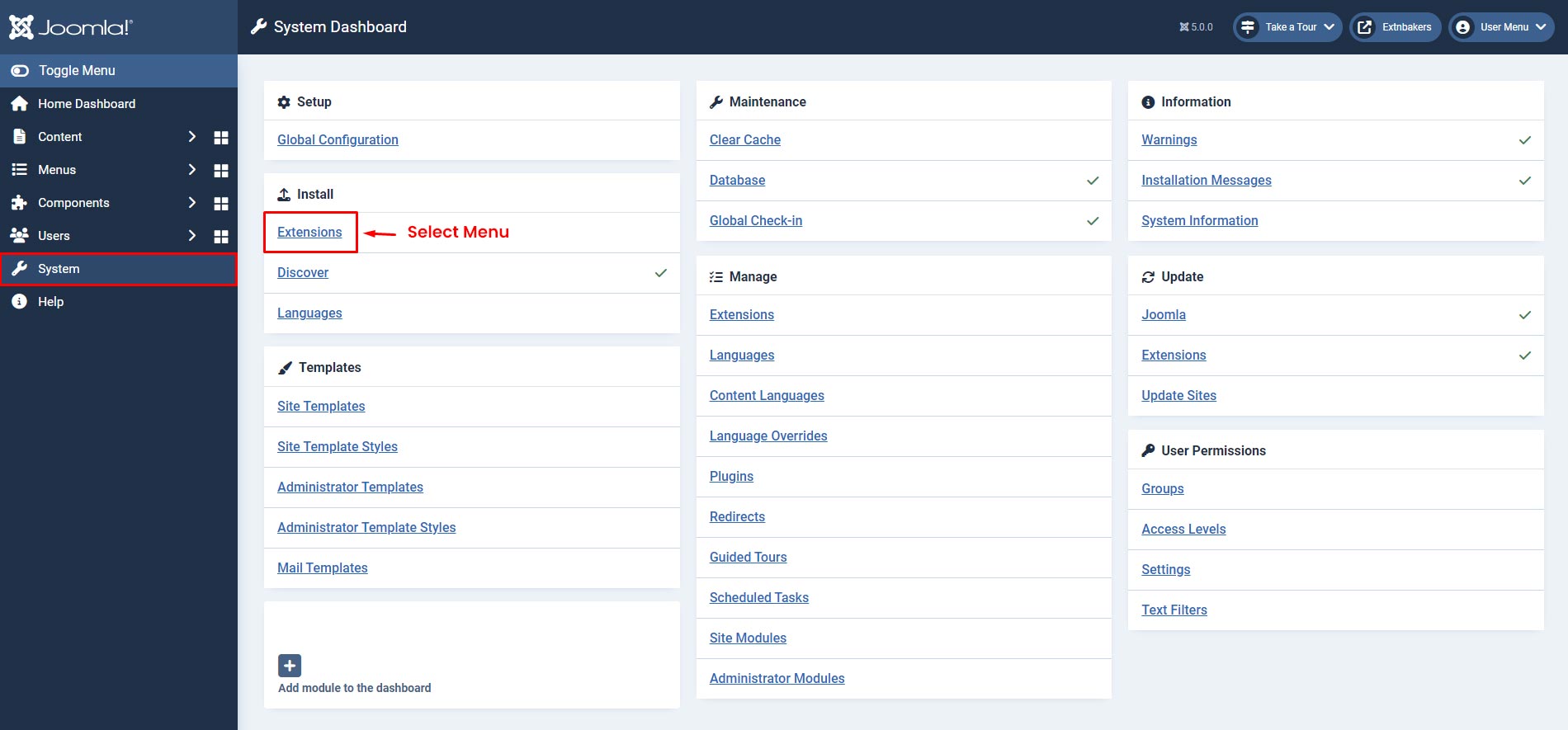
- Login to Joomla administrator panel and Go to System -> Extensions
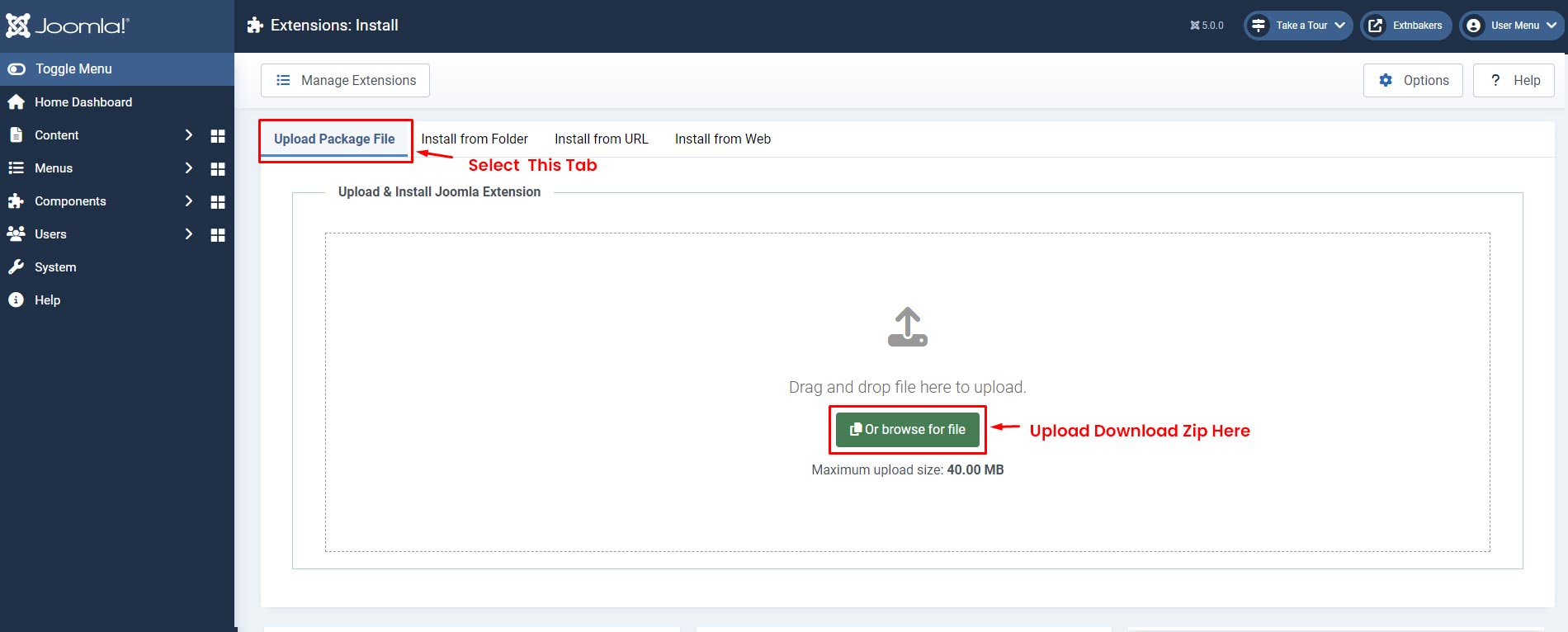
- Select the "Upload Package File" Tab, Then Upload Downloaded Zip
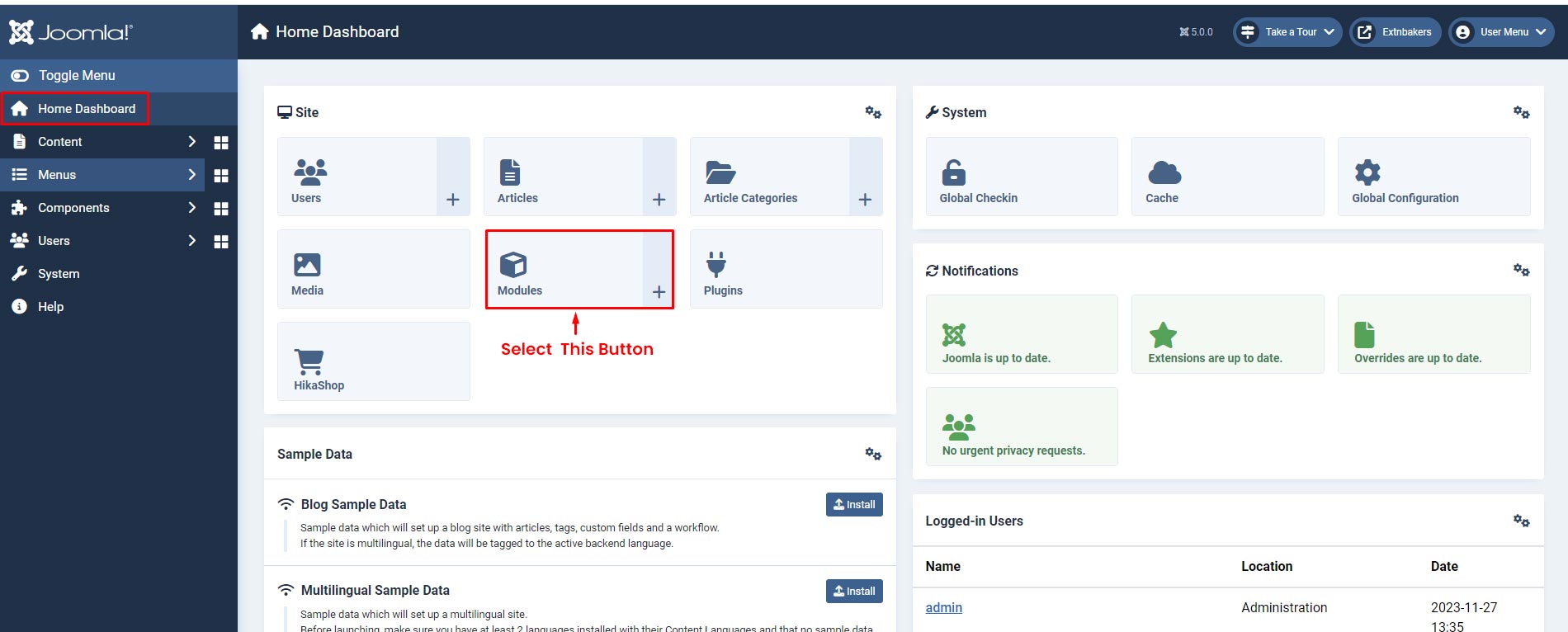
Step 2: Go to EB Video Gallery Module
- Go to Home Dashboard -> Modules
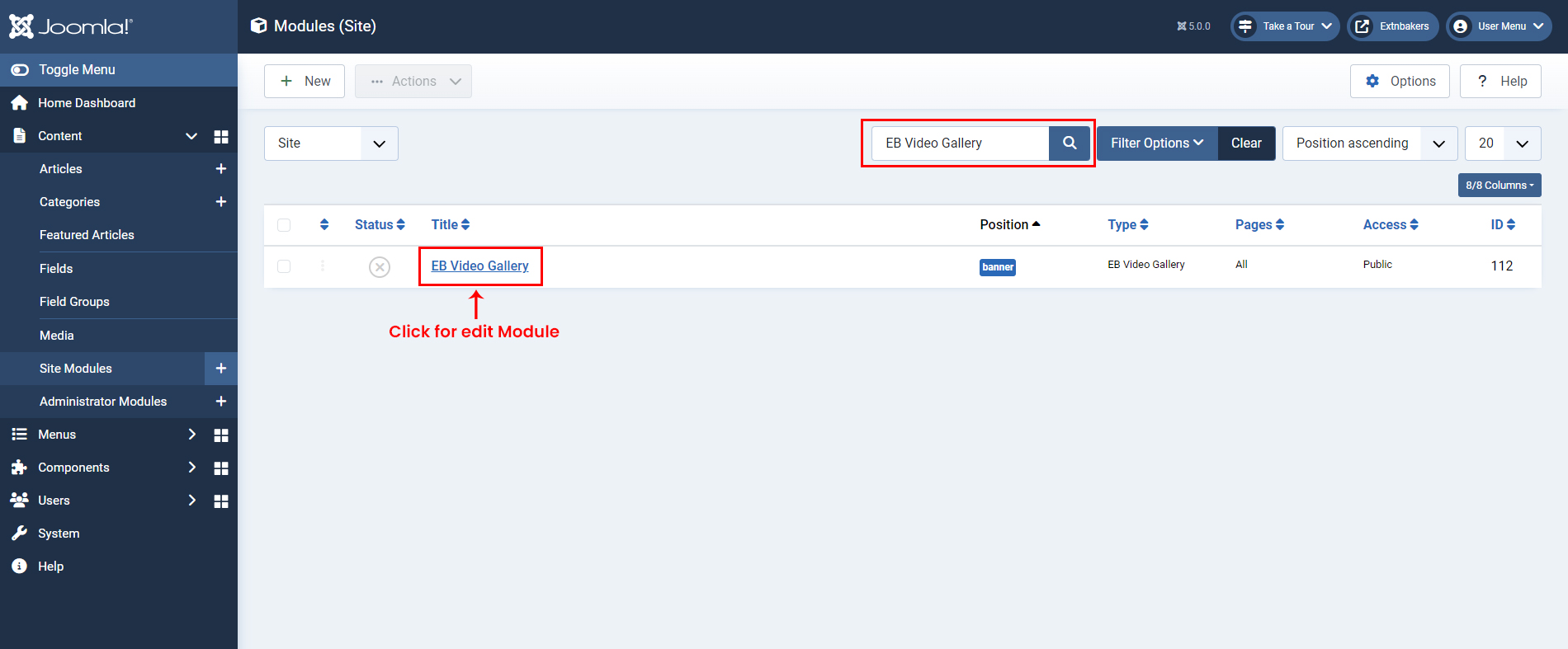
Step 3: Module Page
- Search for "EB Video Gallery" in the Search box and click on "EB Video Gallery" module to start editing screenshot
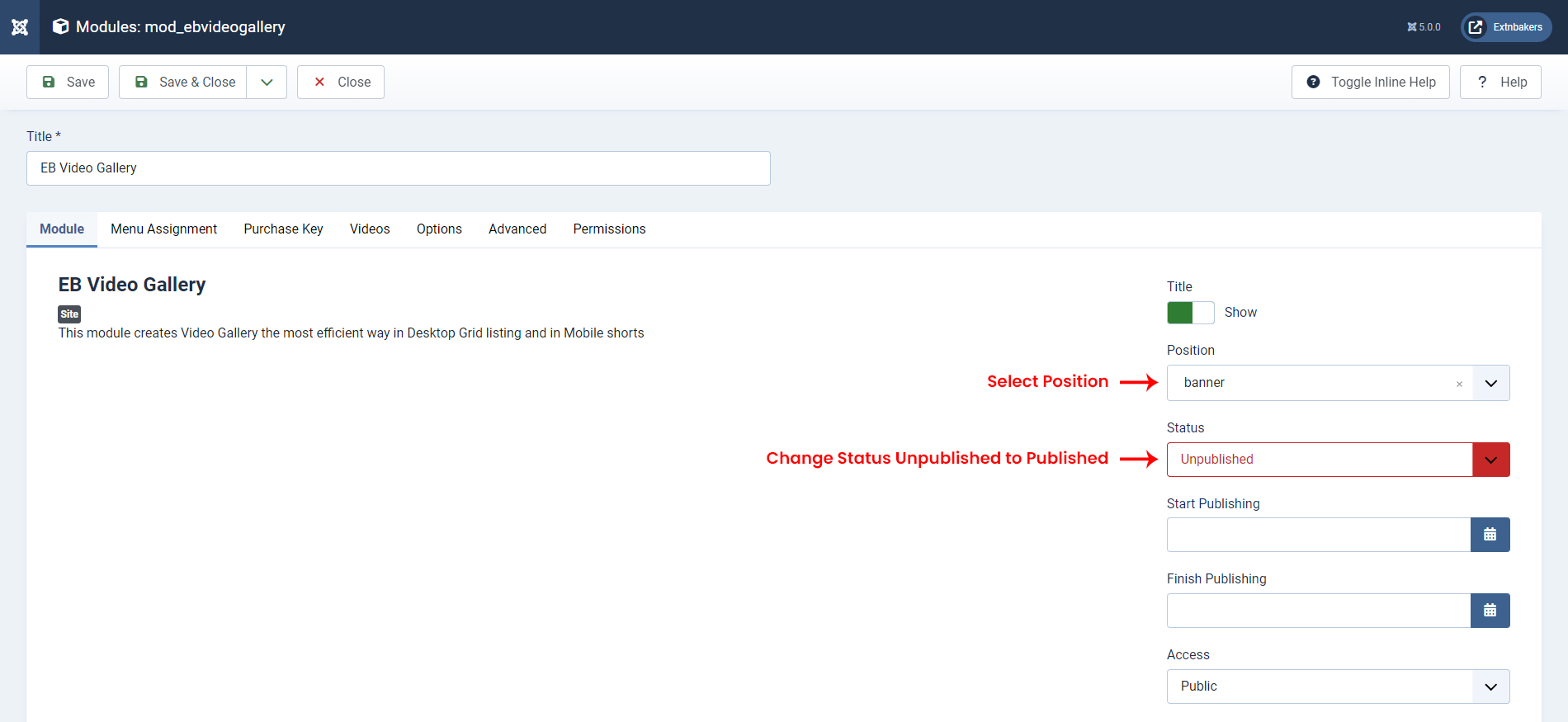
- On the Module Edit Page, Select Position for EB Video Gallery module for display and Change status from Unpublished to Published screenshot
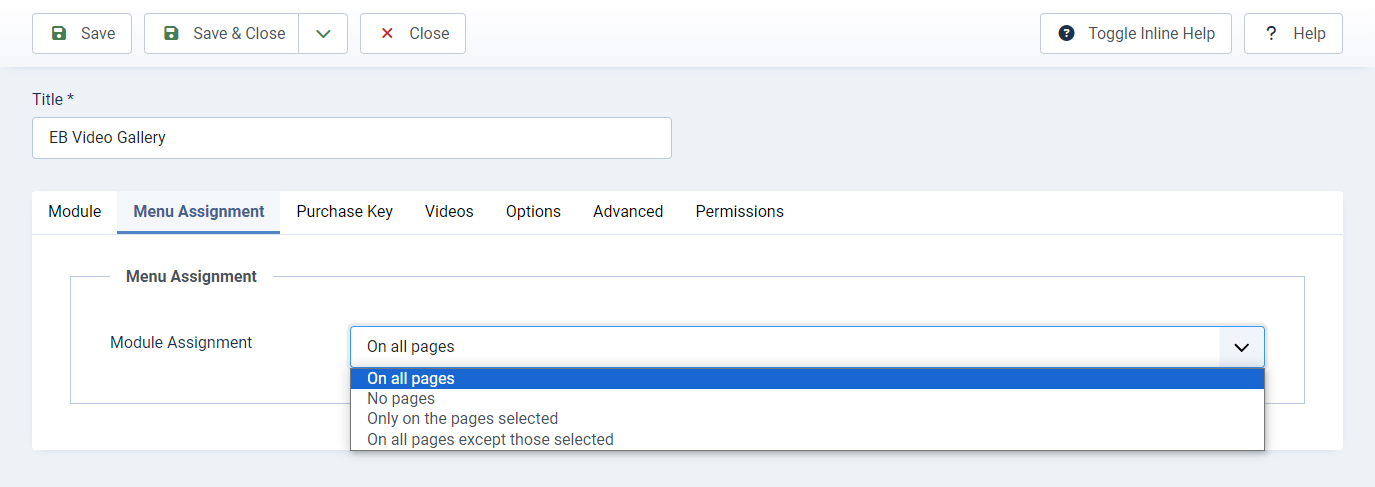
Menu Assignment
- Configure Page where you want to display EB Video Gallery Module screenshot
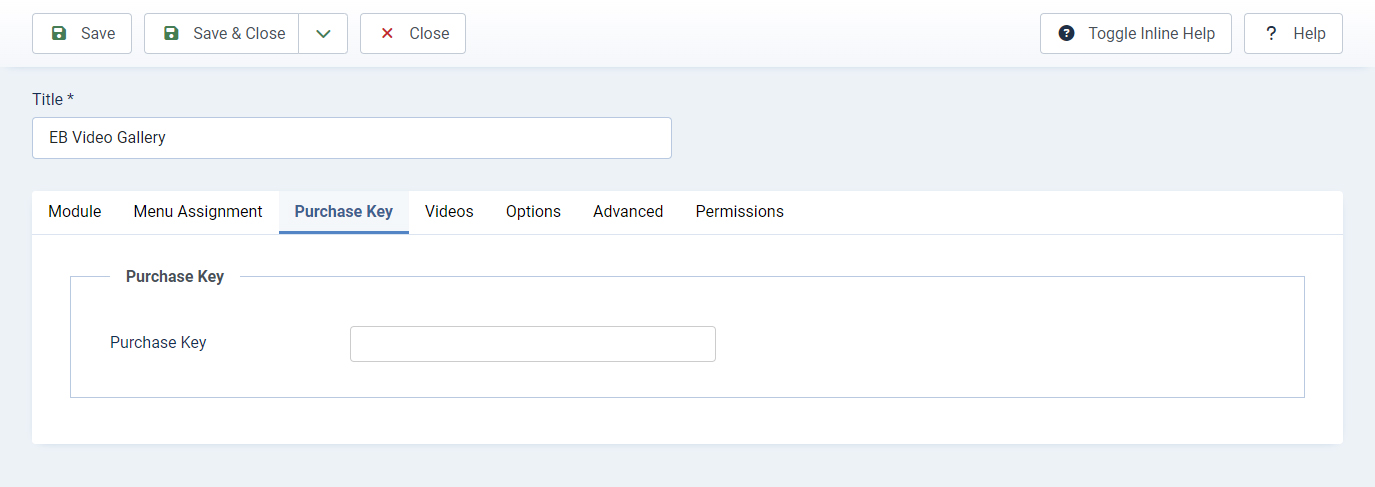
Purchase Key
- Enter the purchase key to enable auto updates
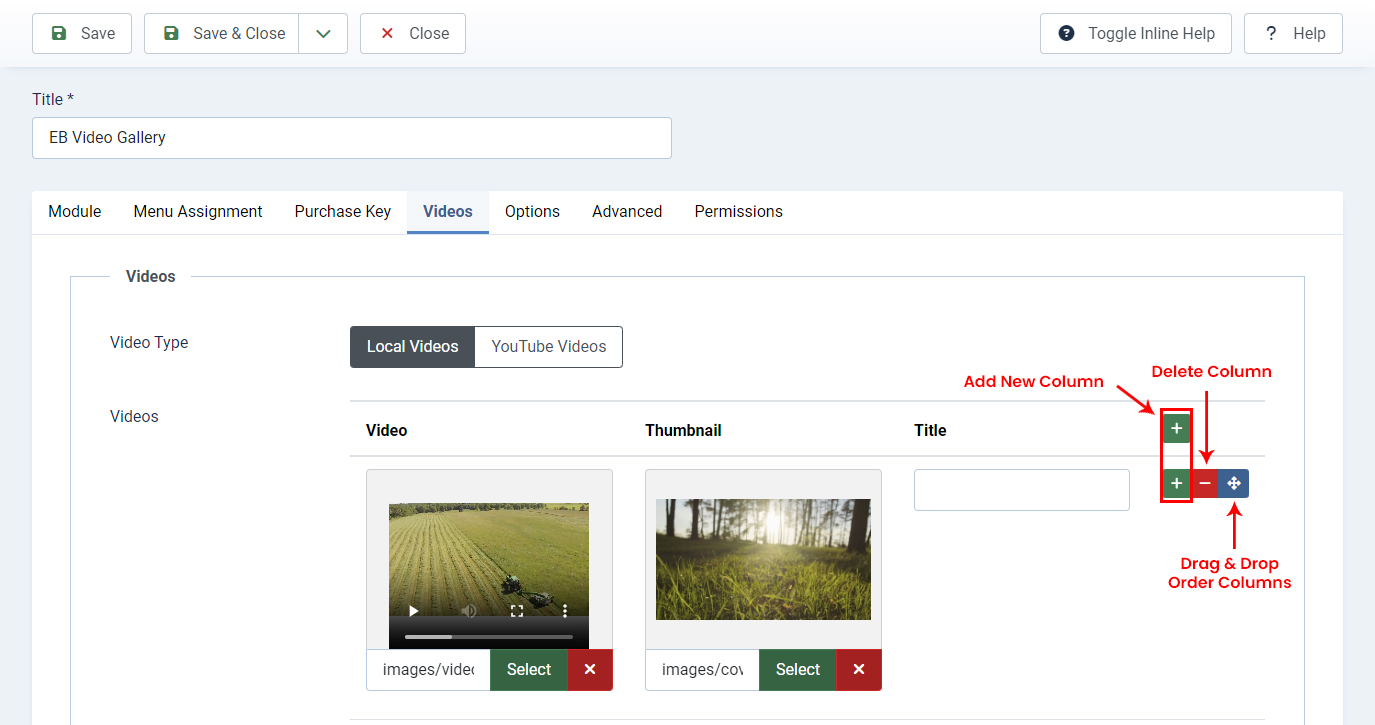
Videos
- Video Type allow to chnage type local video or Youtube Video
- Youtube Video Link should be like : https://www.youtube.com/watch?v=1tx3egjODlI
- Both Video types thumbnail image must have to add
Options
- Gallery Style : Style 1
- Show Video Title
- Dekstop Items
- Tablet Items
- Mobile Items
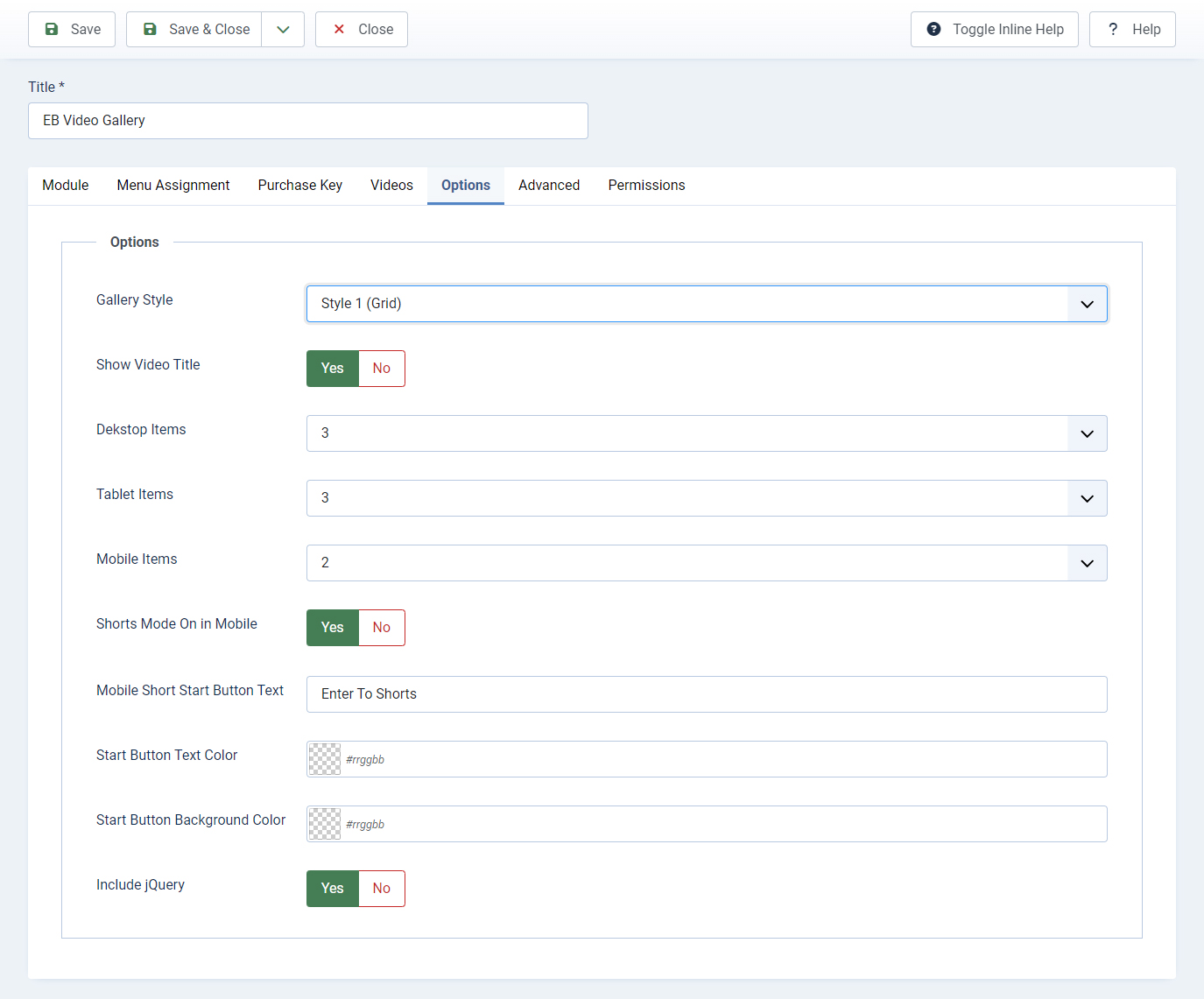
- Gallery Style : Style 2
- Desktop Items
- Tablet Items
- Mobile Items
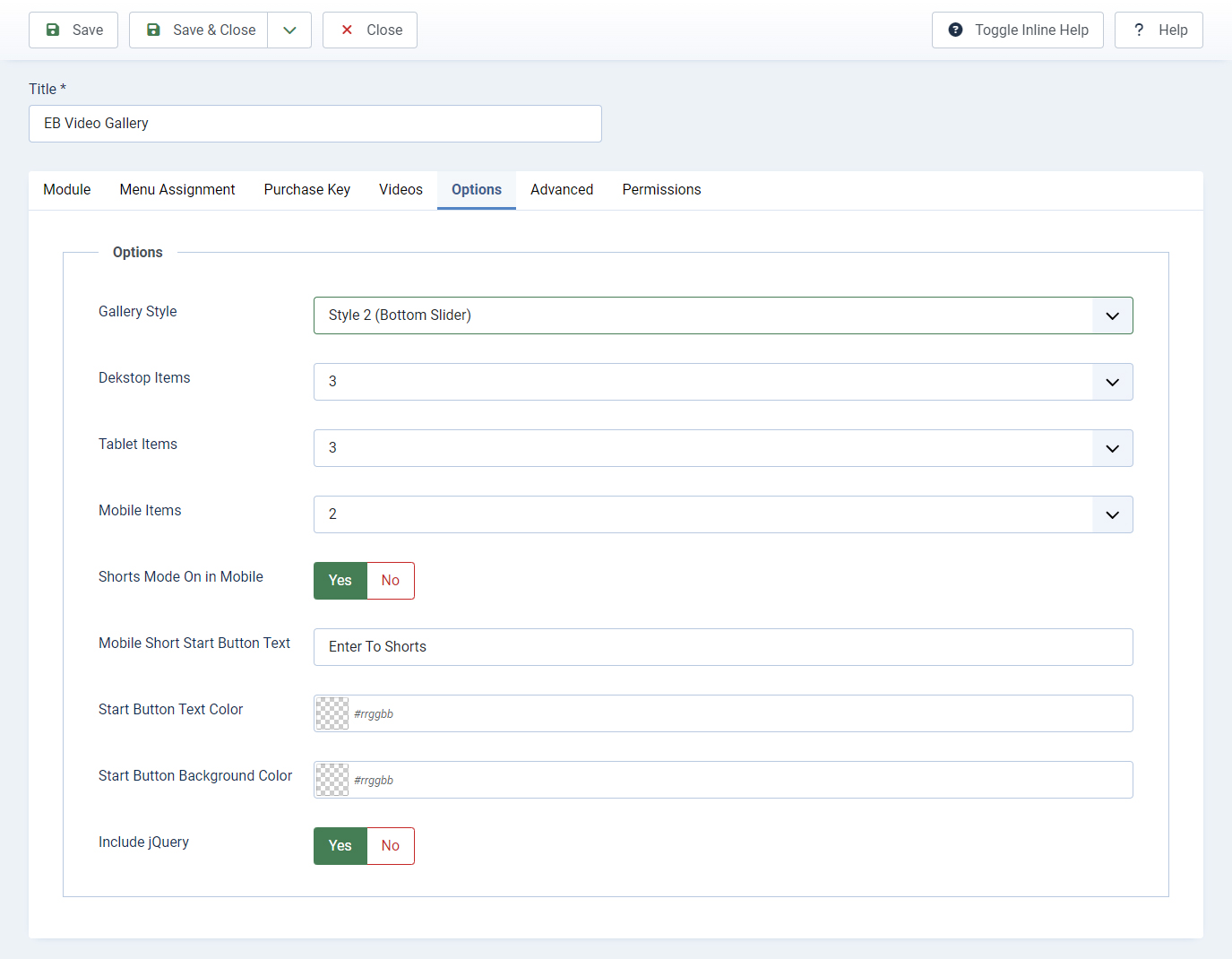
- Gallery Style : Style 3
- Show Video Title
- Mobile Items
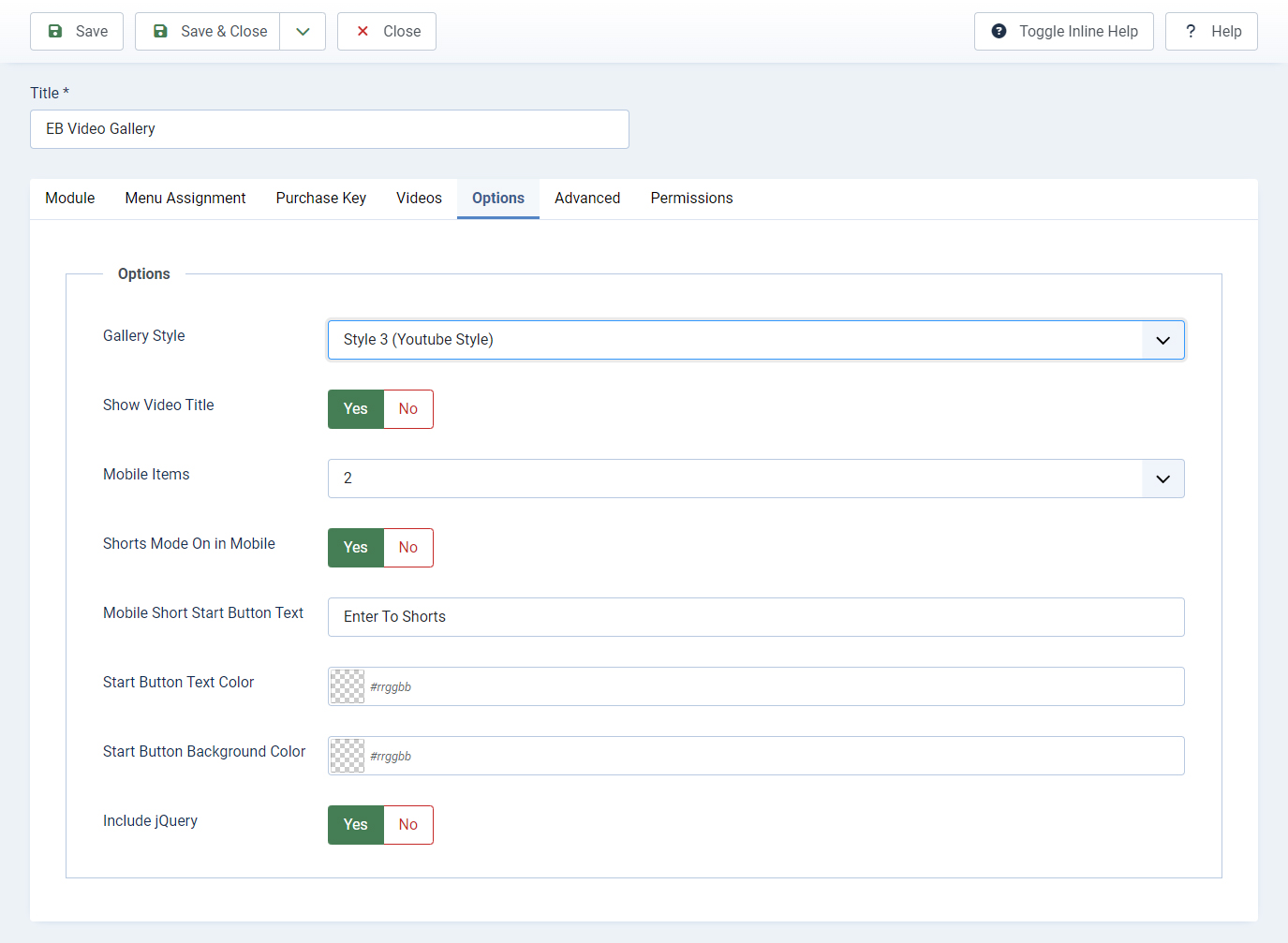
- Gallery Style : Style 4
- Open Video In Popup
- 3D Slide Background Color
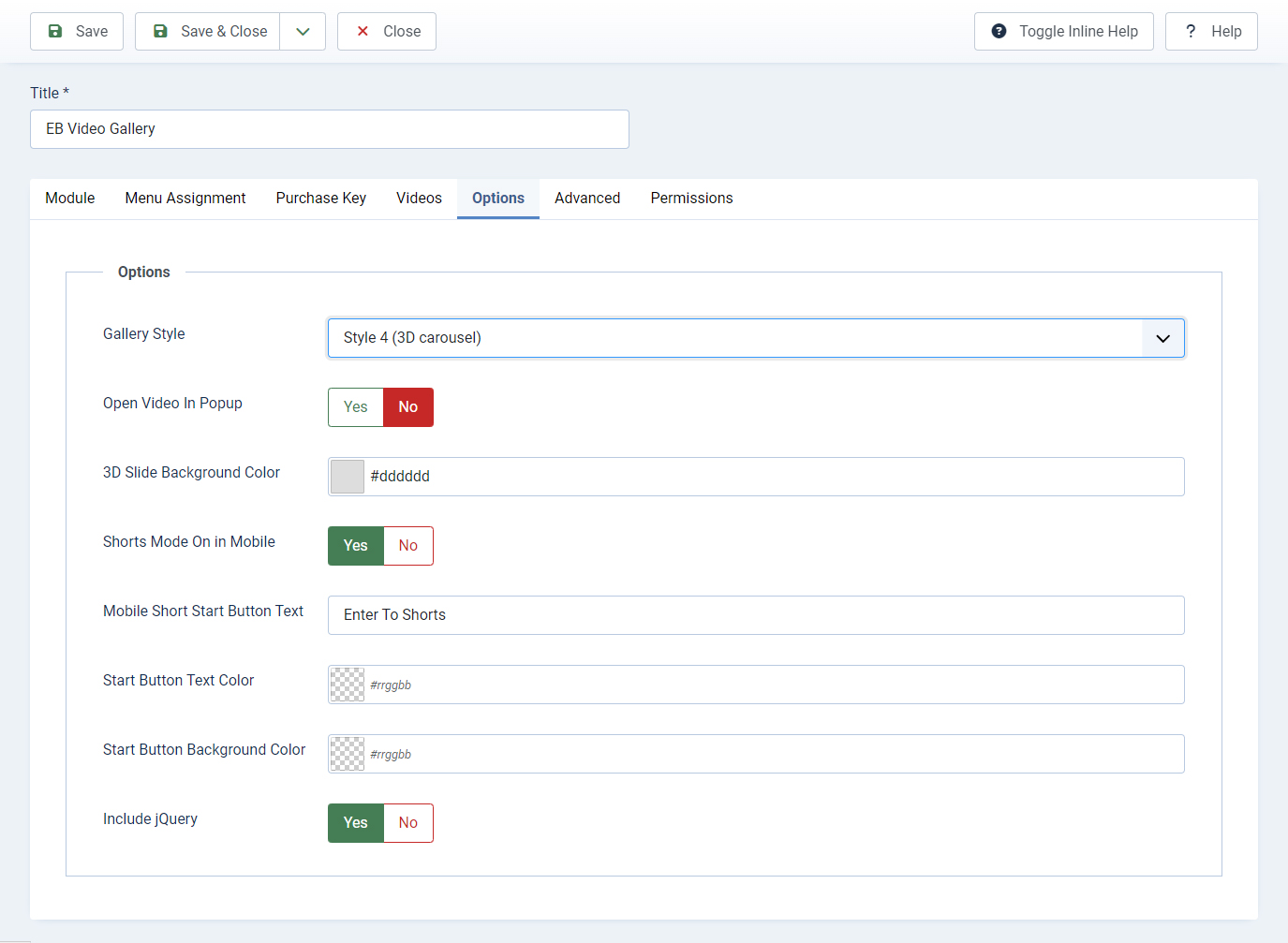
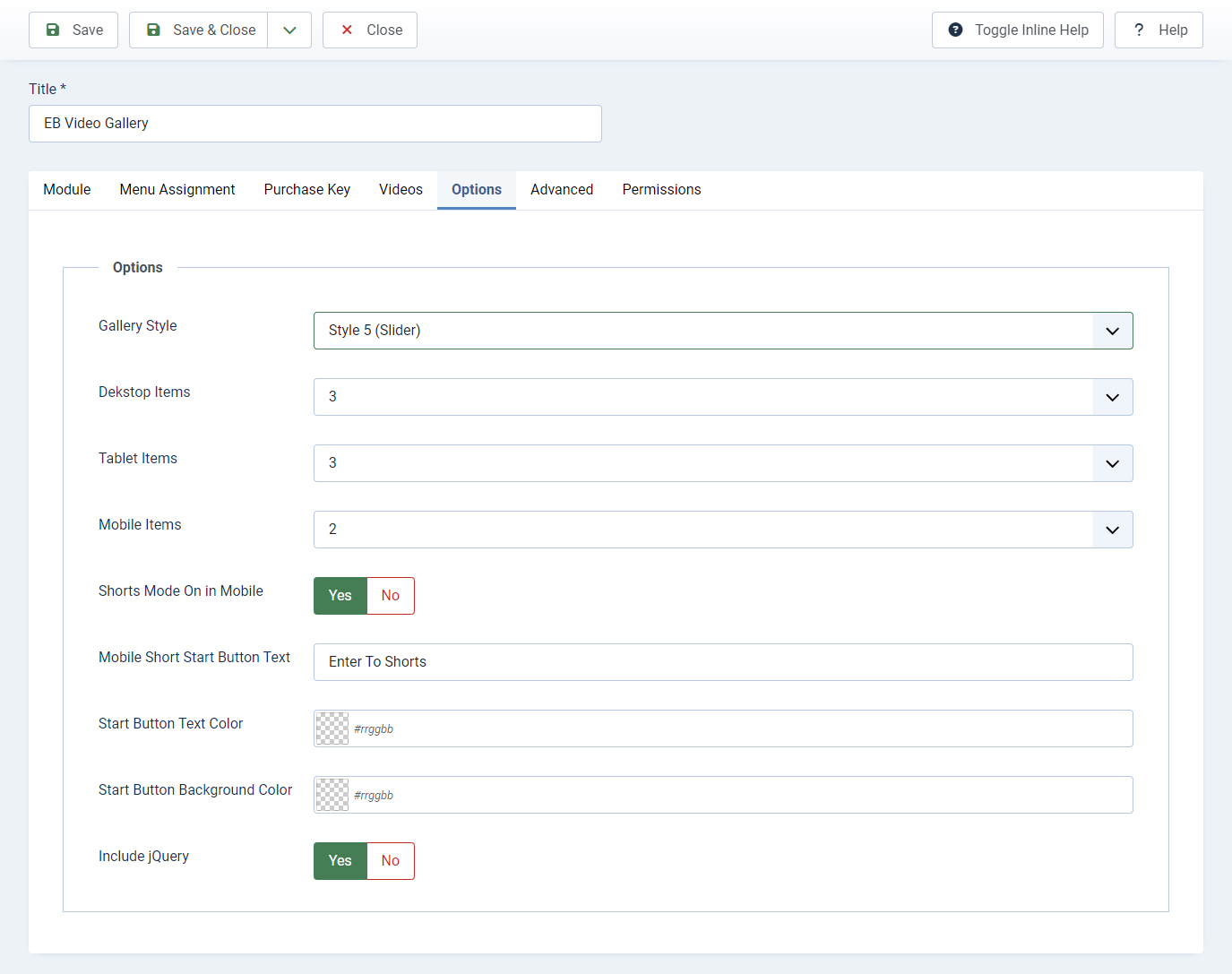
- Gallery Style : Style 5
- Desktop Items
- Tablet Items
- Mobile Items
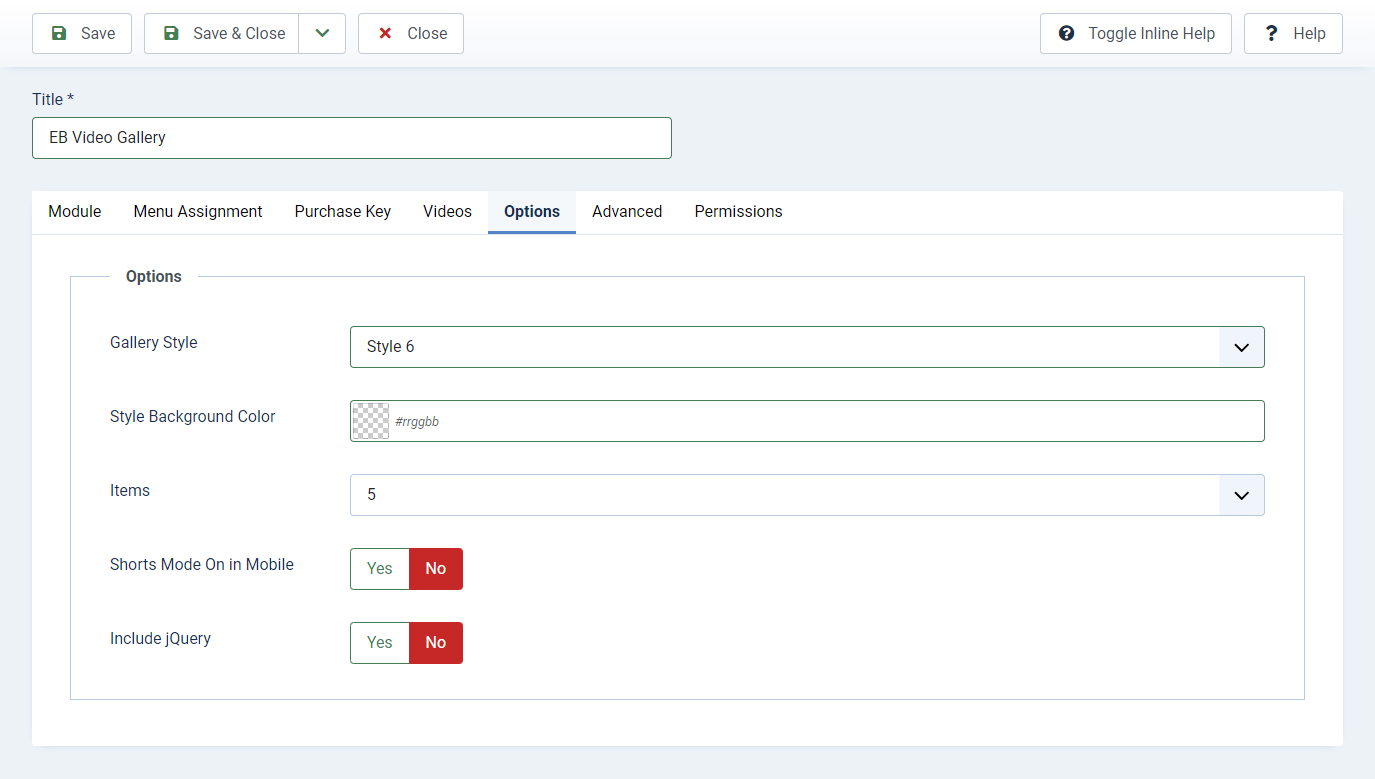
- Gallery Style : Style 6
- Style Background Color
- Items(Max 5 items)
- General options:
- Shorts Mode On in Mobile
- Mobile Short Start Button Text
- Start Button Text Color
- Start Button Background Color
- Include jQuery